Notion
9 Hidden Notion Features for Business Owners
Discover 9 powerful Notion features most business owners miss. Learn keyboard shortcuts, search tricks, and filtering techniques to boost productivity.
Daniel Canosa ·
TL;DR: Nine underused Notion features can transform how you run your business: keyboard shortcuts for fast formatting, Command+P search, personalized "My Tasks" views, tabbed project dashboards with two-way relations, collapsible property groups, page-level access control for private tasks, rollup-based financial data security, webhook integrations with external tools, and conditional logic forms. These range from beginner time-savers to architect-level features.
Key Takeaways
- Keyboard shortcuts (Command+Option+1 through 9) for formatting save significant time when you are building and maintaining Notion pages daily.
- Filtering a shared task database view by "Assignee is me" creates a personalized task list for every team member from a single view.
- Tabbed page structures with two-way relations let you build centralized project dashboards showing tasks, resources, and team members in one place.
- Page-level access control lets team members keep personal tasks private in a shared database without needing a separate system.
- Conditional logic on Notion forms shows or hides fields based on user selections, keeping forms clean while still capturing all necessary data.
I've been a Notion certified consultant since 2021, and honestly, the number of hidden features that business owners never discover still surprises me.
After helping more than 70 businesses systemize in Notion, I keep seeing the same pattern.
Most people barely scratch the surface of what this tool can actually do for their operations.
So let me save you some headaches by breaking down the nine features that will actually move the needle in your business.
I'm organizing these into three levels: beginner features that save you time daily, operator features that streamline your workflows, and architect features that only the real pros know about.
Beginner Features That Save You Hours
The fastest way to format pages? Your keyboard.
Most business owners click through menus to format text, which honestly drives me crazy when I see it during client calls.
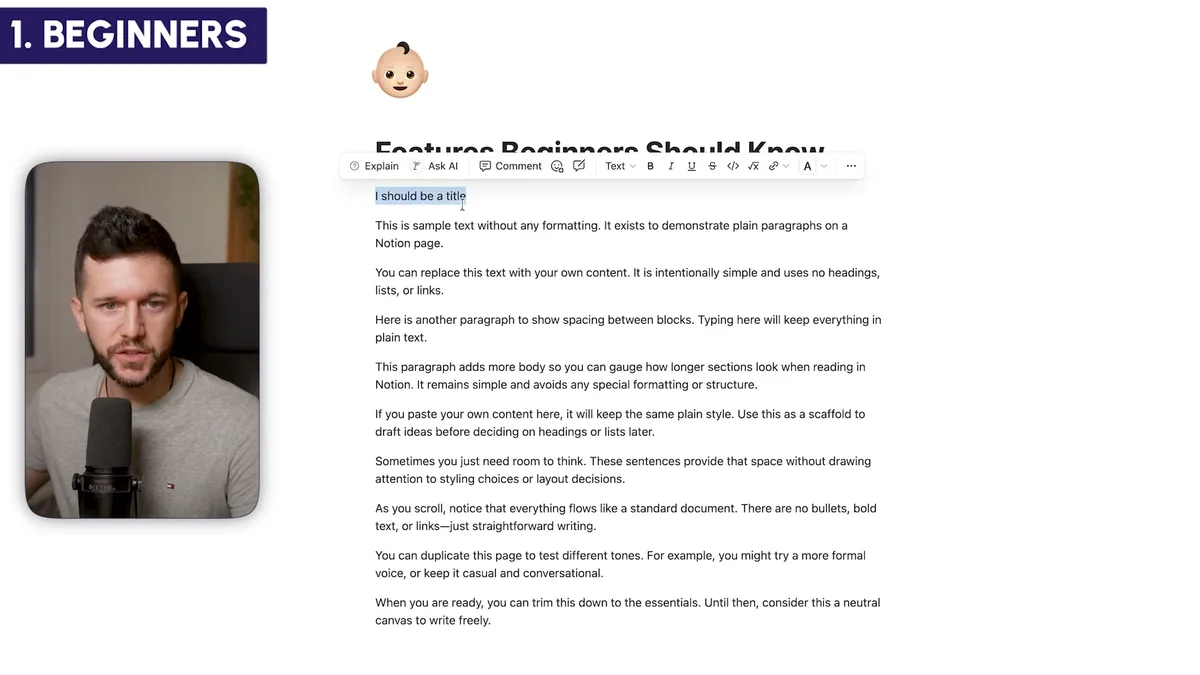
You can format any page using only keyboard shortcuts.
Command+Option+1 creates a heading 1, Command+Option+2 creates a heading 2, and so on.
Numbers 5 through 9 give you different text styles, and 0 returns to normal text.
This literally saves 5 seconds every single time you format text, which adds up fast when you're building systems.
Finding lost pages without the frustration.
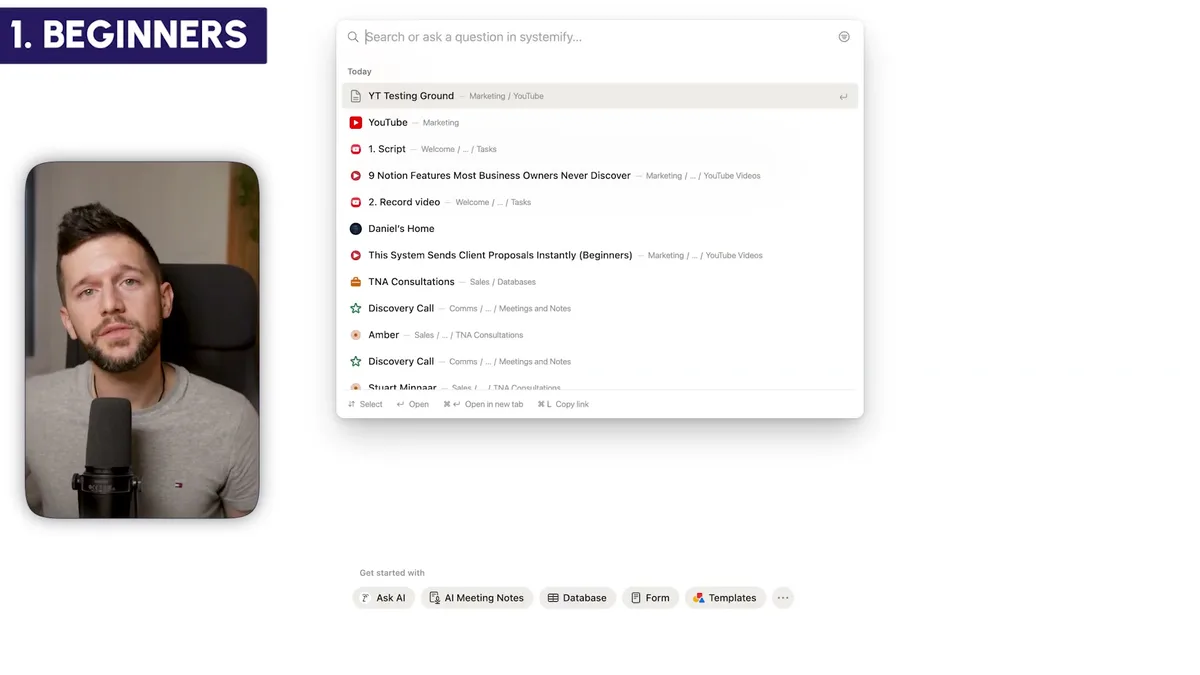
There's a search feature that's surprisingly hidden for something so essential.
You'll find it in your sidebar, but here's the faster way: Command+P (or Command+K) opens the same search instantly.
This becomes crucial when your workspace grows beyond a handful of pages.
I use this constantly to find pages I don't access often, like project templates or reference documents that would take forever to navigate to manually.
The simplest task manager setup you'll ever see.
Let's say you have a task database that your whole team uses.
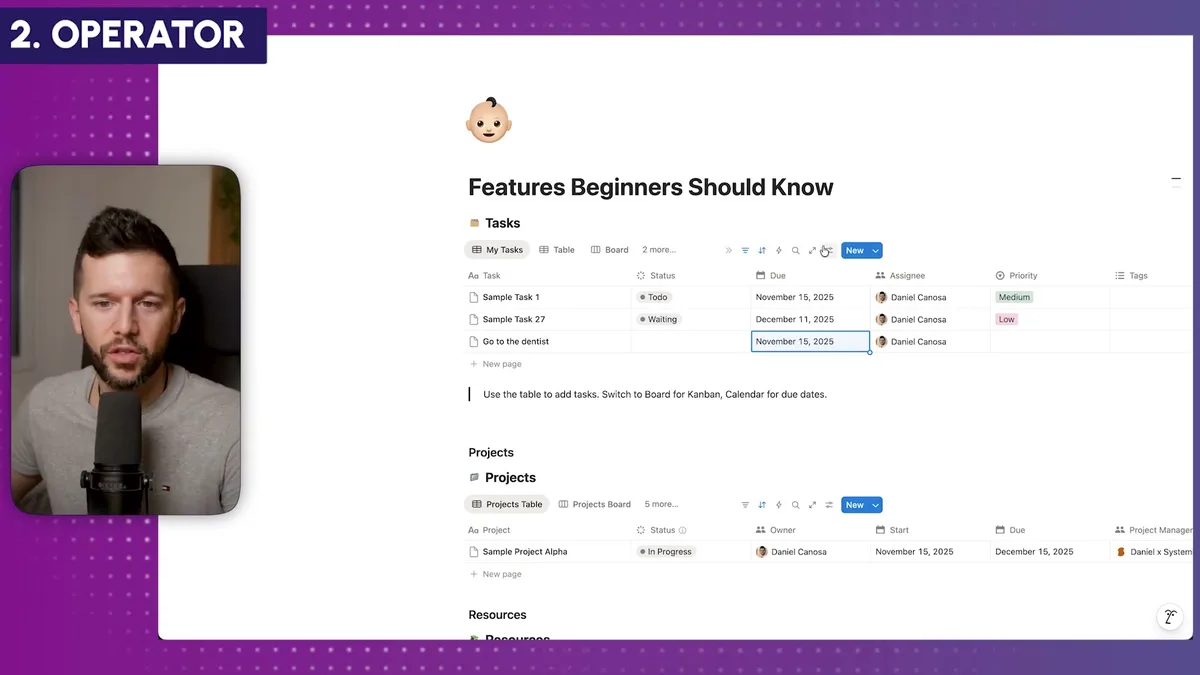
The magic happens when you create a view called "My Tasks" and filter it by "Assignee is me."
Here's what's brilliant about this: everyone on your team can use the exact same view.
When I'm logged in, I see only my tasks.
When my project manager logs in, she sees only hers.
One view, personalized for everyone automatically.
This eliminates the need for separate task management systems or complex filtering that nobody remembers how to use.
Operator Features for Streamlined Workflows
Now we're getting into territory where most business owners start to feel overwhelmed.
But these features are what separate businesses that struggle with organization from those that run like clockwork.
Centralized project dashboards that actually work.
Most businesses have tasks, projects, and resources scattered across different systems or buried in separate Notion databases.
Here's how to create a centralized view for everything related to a project.
When you have proper two-way relations set up (meaning tasks link to projects AND projects link to tasks), you can use Notion's tabbed page structure.
Go to customize layout, select "tabbed" as your page structure, then click the plus icon that appears.
You'll see your relation properties listed there.
Select "Tasks" and suddenly you have all project-related tasks displayed right on the project page, with full property visibility and filtering options.
Do the same for resources, team members, or any other related data.
Bear in mind, this only works with proper two-way relations, but once set up, it creates a command center for each project.
Property groups that make complex databases manageable.
I see this constantly with growing businesses: your project database starts with 5-6 properties and grows to 20+ properties over time.
Suddenly, nobody can find anything because there's too much information on screen.
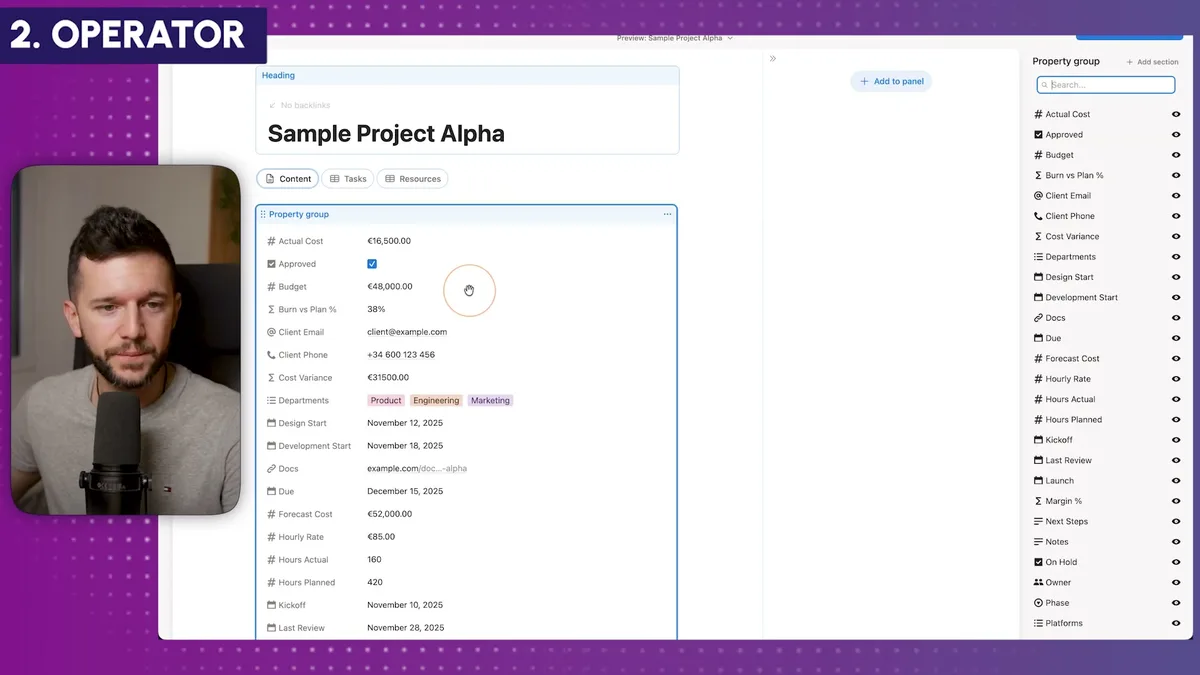
The solution is property grouping through the customize layout feature.
Create sections like "General," "Financials," "Team," whatever makes sense for your business.
Add emojis to make them visually distinct (I always recommend this).
Group related properties under each section.
The result? Collapsible property groups that keep your database organized no matter how complex it gets.
Page-level access control for sensitive tasks.
Sometimes you need to use your team's task database for personal items, like scheduling a dentist appointment, without everyone seeing it.
Here's how to make tasks visible only to the person assigned to them.
Open your database as a full page, click the share button at the top, and set up page-level access.
You'll need a "Person" property (like Assignee), then specify that only the assignee can edit the task.
Finally, revoke general access to the database so the only access is through the page-level permissions.
Now personal tasks stay personal, while team tasks remain collaborative.
Architect Features for Advanced Users
These are the features that separate businesses using Notion as a fancy notepad from those using it as a genuine business operating system.
Securing sensitive financial data with rollups.
Let's say you have project revenue, budget, and financial data that should only be accessible to partners or C-suite executives.
The typical approach of just restricting database access doesn't work because team members need to see the projects themselves.
Here's the solution: create a separate "Financial Data" database that only executives can access.
Store all sensitive numbers there (revenue, budgets, profit margins).
Then, in your main project database, convert those number properties to rollups that pull from the restricted financial database.
Team members see the same information displayed on project pages, but they can't access or edit the underlying sensitive data.
It's slightly more complex to update (you edit in the financial database rather than directly on the project), but it's the only technical way to achieve this level of data security within Notion.
Connecting Notion to your entire tech stack.
Most businesses use way more than just Notion.
You probably have Stripe for payments, DocuSign for contracts, maybe Salesforce or GoHighLevel for CRM.
Notion can connect to literally thousands of other tools through webhooks and automation platforms like Make.com, Zapier, or n8n.
Here's how it works: create a button in Notion that sends data to a webhook URL provided by your automation platform.
When someone clicks that button, all the project data gets sent to Make.com (or your chosen platform), which can then update your CRM, send contracts, create invoices, or trigger any other action in connected tools.
The reverse works too: when something happens in any connected tool, it can automatically update Notion.
I have extensive content on automation workflows if you want to dive deeper into specific integrations.
Dynamic forms with conditional logic.
Most people know Notion has forms, but they don't know about conditional logic.
This is huge for businesses with different types of projects, clients, or service offerings.
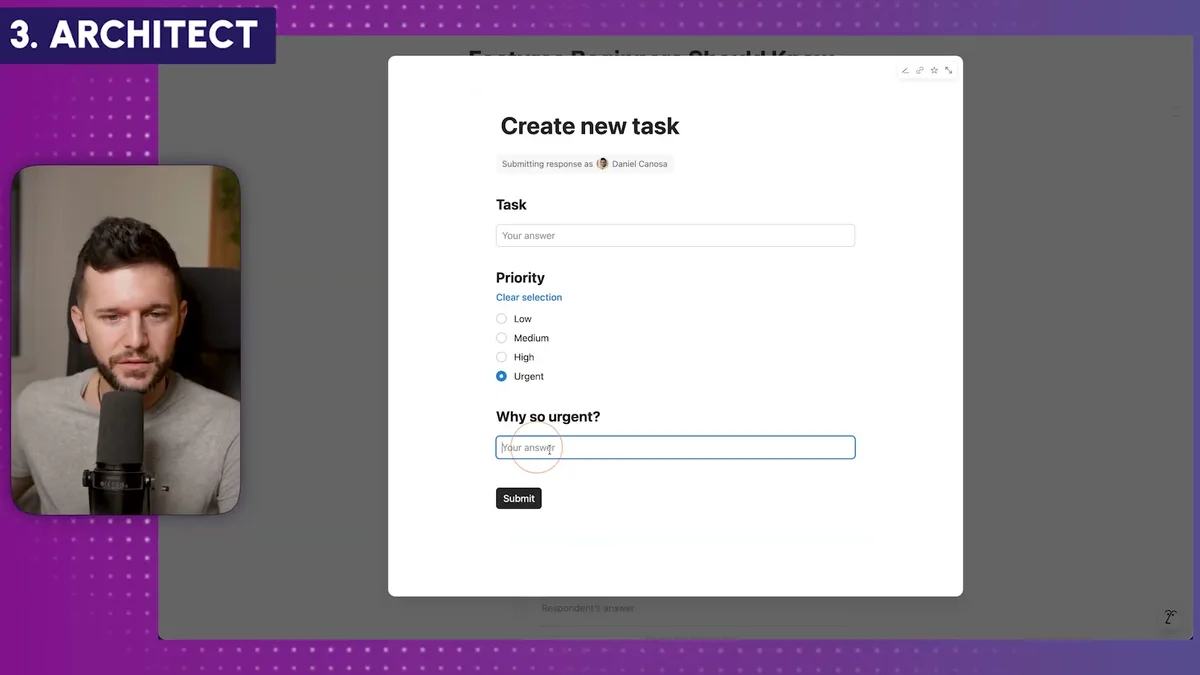
Let's say your task management has different priorities, and urgent tasks require additional information.
In your form, you can set up conditional logic: if someone selects "Urgent" priority, additional fields automatically appear asking for justification and details.
This works for any scenario where different selections require different data.
Different project types? Show relevant fields based on the type selected.
Company vs individual clients? Display appropriate contact fields automatically.
Bug reports vs feature requests? Present the right information gathering fields.
The result is cleaner forms that don't overwhelm users with irrelevant fields while still capturing all necessary data.
Bear in mind, there are dozens more hidden features I could cover, but these nine consistently shock my clients when I demonstrate them.
The key isn't just knowing these features exist, but understanding how they fit into your specific business workflows.
That's where the real transformation happens.
Ready to see where your business stands with AI and automation? Take our AI Readiness Scorecard to find out.
Frequently Asked Questions
How do I protect sensitive financial data in Notion while keeping projects visible to my team?
Create a separate "Financial Data" database that only executives can access. Store all sensitive numbers (revenue, budgets, profit margins) there. Then, in your main project database, use rollup properties that pull from the restricted financial database. Team members see the data displayed on project pages but cannot access or edit the underlying source.
Can I use Notion forms with conditional logic for client intake?
Yes. Notion forms support conditional logic that shows or hides fields based on user selections. For example, if a client selects "Urgent" priority, additional fields asking for justification automatically appear. This works for different project types, client categories, or any scenario where different inputs require different data collection.
What is page-level access and how does it differ from regular Notion sharing?
Regular Notion sharing gives someone access to an entire page and everything inside it. Page-level access lets you control visibility at the individual database entry level based on a person property. This means you can have a shared task database where each person only sees entries assigned to them, keeping personal or sensitive items private without needing separate databases.
Get more like this in your inbox
AI implementation insights for service business founders. No fluff.