Notion · Business Systems
Automate Google Drive Folder Creation with Notion
Turn a 15-minute manual Google Drive folder setup into a hands-free automation triggered from your Notion CRM.
Daniel Canosa ·
TL;DR: You can automate Google Drive folder creation by connecting your Notion CRM to Make.com via a webhook. When a client's status changes to "Active," the automation creates a complete folder structure (Admin, Discovery, Content, Design, etc.) in Google Drive, shares it with the client, and saves the folder link back to Notion. This turns a 15-minute manual process into a hands-free, instant onboarding step.
Key Takeaways
- A consistent, reusable folder structure for every client eliminates the chaos of ad-hoc file organization and signals professionalism from day one.
- Triggering folder creation automatically when a client's CRM status changes to "Active" reduces time-to-value from minutes to seconds after payment.
- Make.com's router feature lets you create multiple folder branches simultaneously, keeping the automation organized and easy to maintain.
- The final automation step writes the Google Drive folder link back to your Notion database, so Notion remains your single source of truth for everything.
- This pattern is adaptable to any service business: website developers, coaches, land investors, and consultants can all customize the subfolder structure to match their workflow.
Your clients don't churn because they hate you.
They churn because they see value too slowly.
If you're a service provider who needs to share files with clients, you're probably spending 15 minutes manually creating Google Drive folders every time you onboard someone new.
I'm going to show you how to turn that into a hands-free automation that copies perfectly for every client.
After helping more than 70 businesses systemize their operations in Notion, this is honestly one of the most requested automations we build for clients.
Let me show you exactly how it works.
The Folder Structure That Actually Works
Most service providers make two critical mistakes with client file storage.
First, they don't have a structured folder system they reuse for all clients.
Second, even if they have a structure, they're recreating it manually every single time.
Here's the folder structure I recommend, and bear in mind, you don't need to use all of these folders.
Take whatever makes sense for your business:
- Client Name (root folder)
- Admin
- Discovery
- Content
- Design
- Development
- QA
- Launch
- Training
- Handover
- Maintenance
- Archive
If you're a website developer, you might focus on Admin, Discovery, Design, Development, and Launch.
If you're a coach, you might only need Admin, Discovery, Content, and Training.
If you're a land investor, you could adapt this to Contracts, Due Diligence, Documentation, and Closing.
The key is having a consistent structure you use every time.
Now, here's where the magic happens.
Instead of creating this manually, we're going to automate the entire process so it triggers whenever a client moves from lead to paying customer.
Setting Up the Automation Trigger
For this automation to give us the best ROI, I love when it triggers independently.
You could trigger it manually, but I prefer when something else kicks it off automatically.
I always set this to trigger whenever a client pays me for the first time.
The moment they move from being a lead to becoming a client, the automation creates the entire folder structure and sends it to them immediately.
This reduces the time from payment to value delivery to literally seconds.
When your client receives a professionally organized folder structure that you'll be using for their entire project, it immediately signals that you know what you're doing.
Here's how to set this up in your CRM:
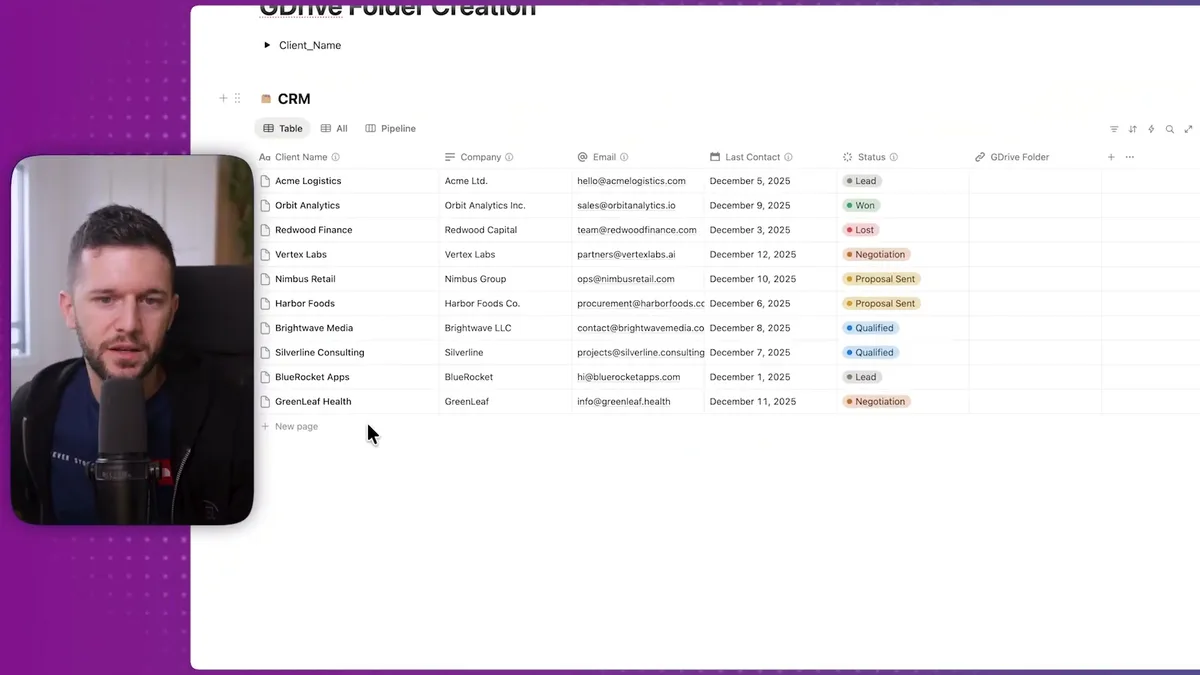
This is a simple CRM database in Notion.
Each row represents a client, and we have properties for their information including a status field and a Google Drive folder link field.
The status change is what will trigger our automation.
When I change a client's status to "Active" (or whatever status indicates they've paid), the automation fires.
Since I want Notion to be my single source of truth for everything in my company, I also want that automatically created folder link stored right here in the database.
Even though we're using Google Drive for file storage, I want to be able to find everything from Notion.
Now let's build the automation itself.
We're using Make.com for this, and the first thing we need is a webhook to receive the trigger from Notion.
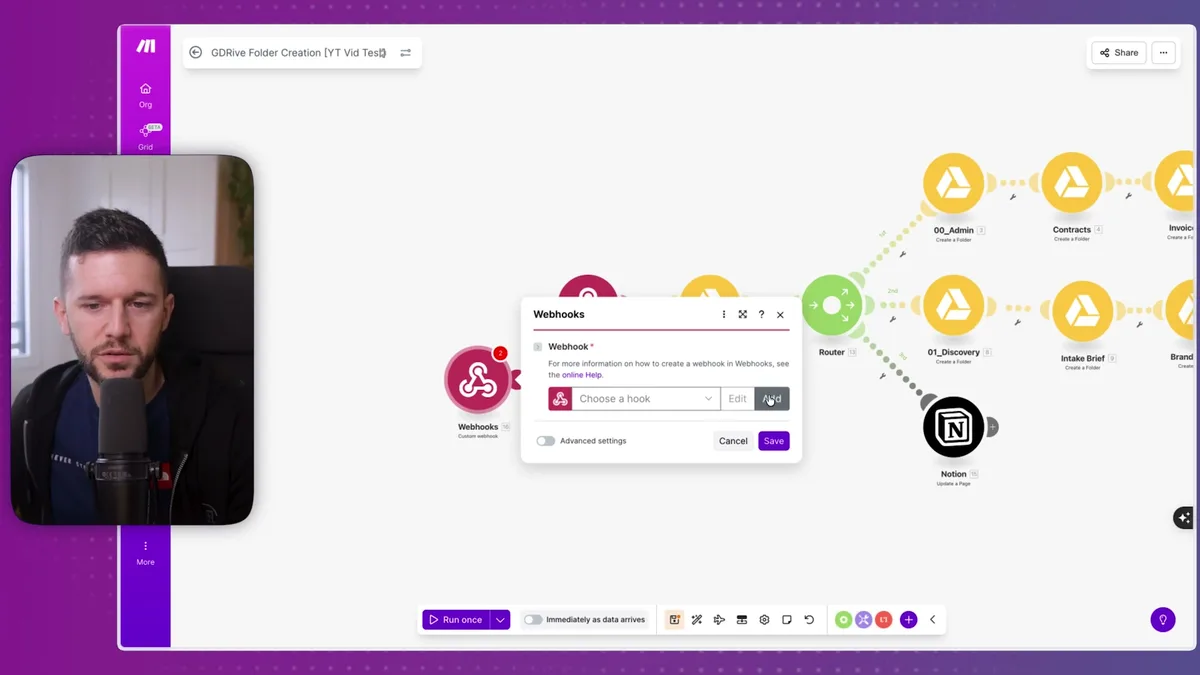
Right-click, add a module, select Webhooks, then "Custom webhook."
Make gives you a unique webhook address that we'll use to connect Notion to this automation.
Copy that address and head back to Notion.
In your database, create a new automation that triggers when the status field changes to your "Active" status.
The automation should send a webhook to the URL Make provided, including the client name and email.
Run the webhook module once so it's listening for events.
Then test it by changing a client's status in Notion.
You should see the webhook receive the client data in Make.
Building the Complete Folder Creation System
Now comes the fun part - creating all those folders automatically.
The first module after our webhook creates the root client folder in Google Drive.
If you haven't connected Make to your Google Drive yet, just click "Add connection" and follow the authentication steps.
For the root folder:
- Folder name: Use the client name from the webhook data
- Parent folder: Choose your main clients folder in Google Drive
- Share with: Set to "Writer" so clients can upload files
- Access: Use "Anyone with link" or add the client's specific email
This creates the main client folder and gives us a folder ID we'll use for the next step.
For the admin folder, we create another "Create Folder" module.
The key difference is the parent folder location - instead of a fixed folder, we use the folder ID from the previous step.
This makes the admin folder nest inside the client's root folder.
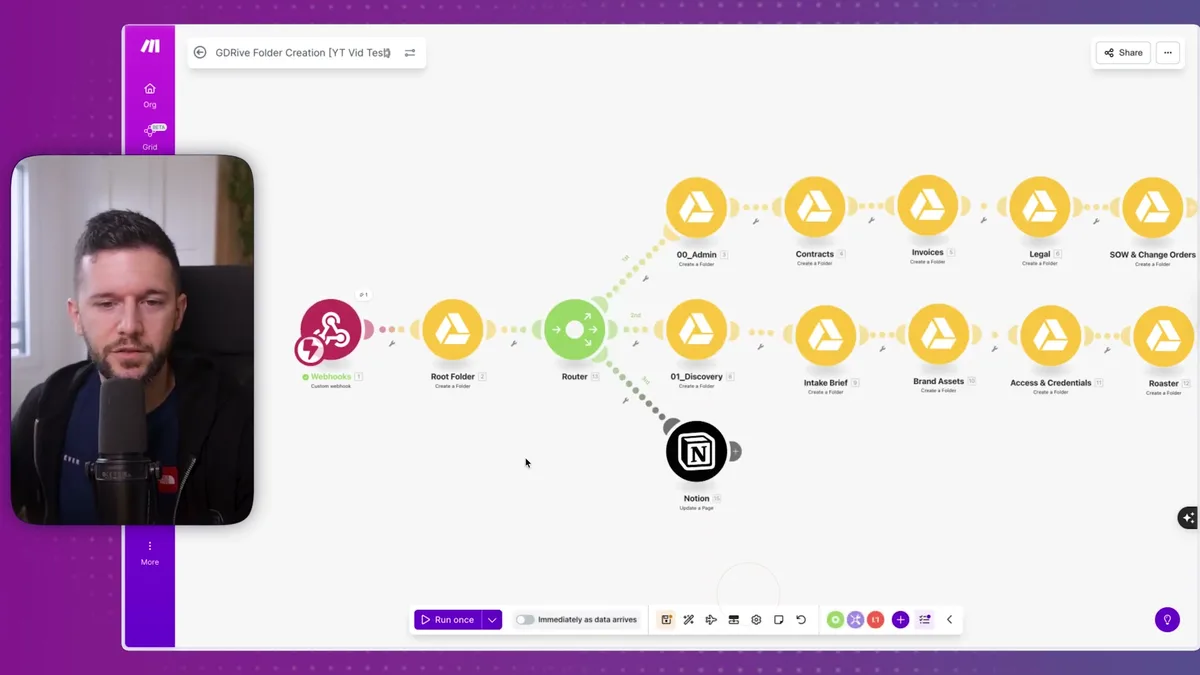
Here you can see how the folder structure builds out.
The admin folder contains contracts, invoices, payments, and communication subfolders.
To create those subfolders, we repeat the same process.
Each subfolder module uses the admin folder's ID as its parent location.
Just change the folder name for each one: Contracts, Invoices, Payments, Communication.
For the other main folders (Discovery, Content, Design, etc.), it's rinse and repeat.
Each main folder gets created inside the client root folder, then any subfolders get created inside their respective parent folders.
The workflow can get visually complex, so I use Make's router feature to organize it better:
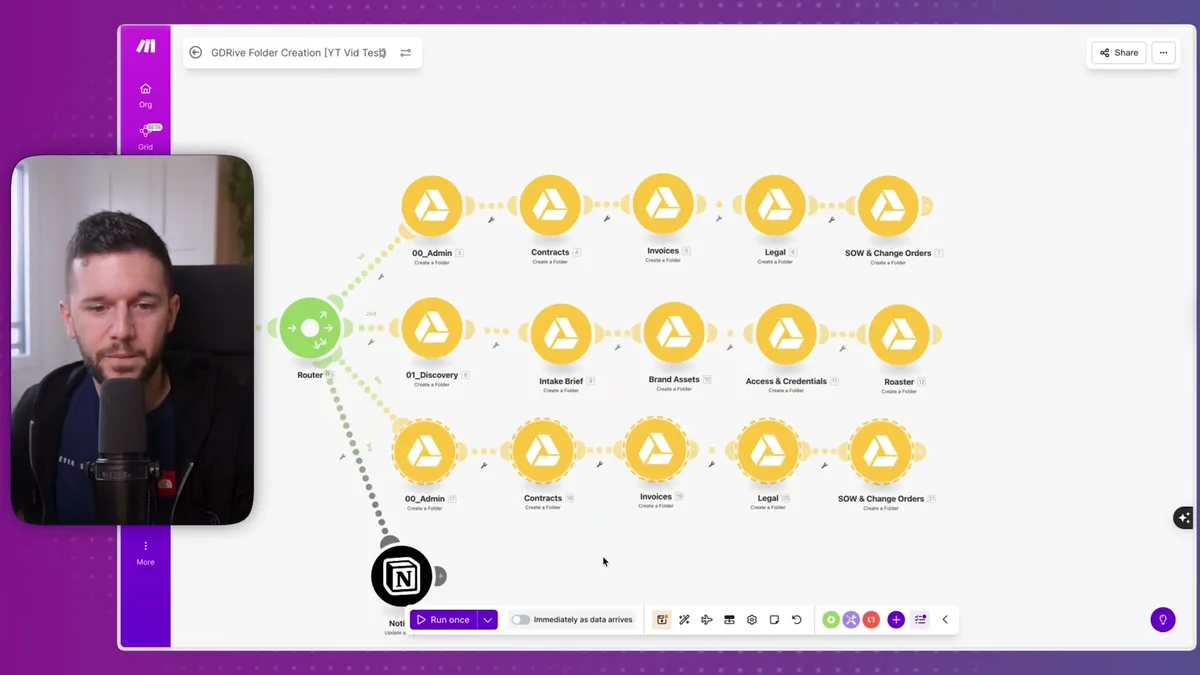
This router setup creates different paths for different folder groups.
It starts at the webhook, creates the root folder, then branches out to create all the folder structures simultaneously.
Honestly, you could build this all in one long chain, but the router makes it much easier to read and maintain.
The final step is updating your Notion database with the folder link.
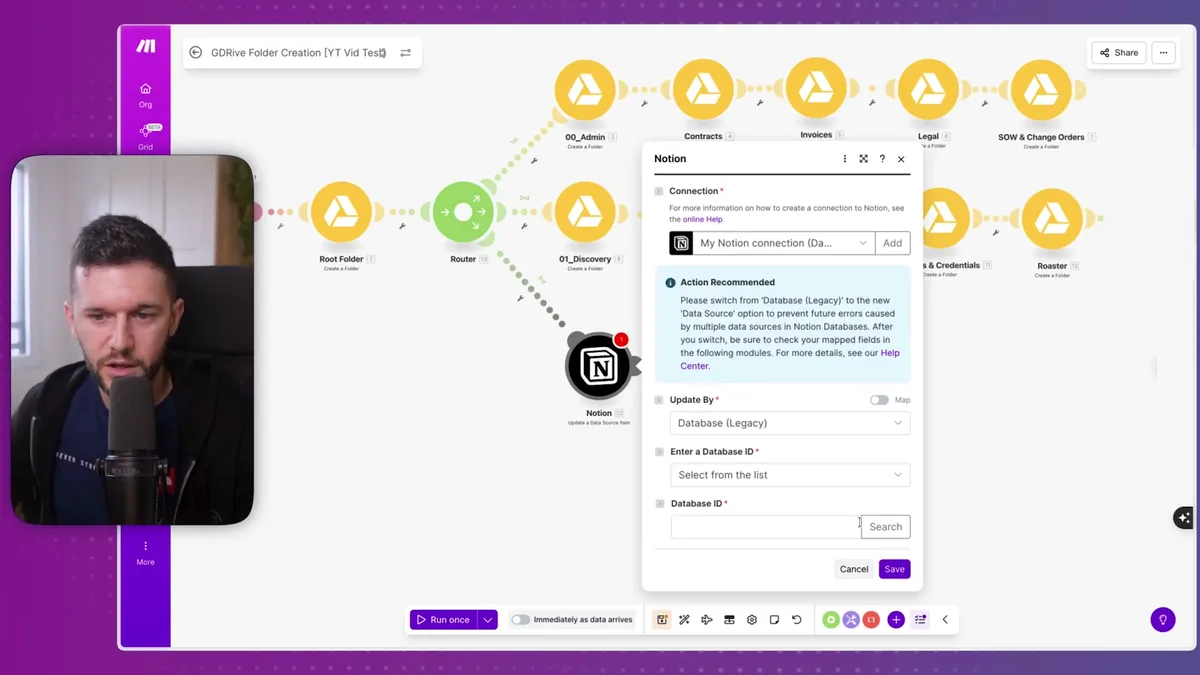
Add a Notion module to update the database record.
If this is a new database, you'll need to give Make access to it first.
Go to your Notion database settings, click "Connections," find Make in the list, and grant access.
Back in Make:
- Database: Select your CRM database
- Database Item ID: Use the ID from the webhook trigger
- Google Drive Folder Link: Use the web view link from the root folder creation step
Now let's test the complete automation.
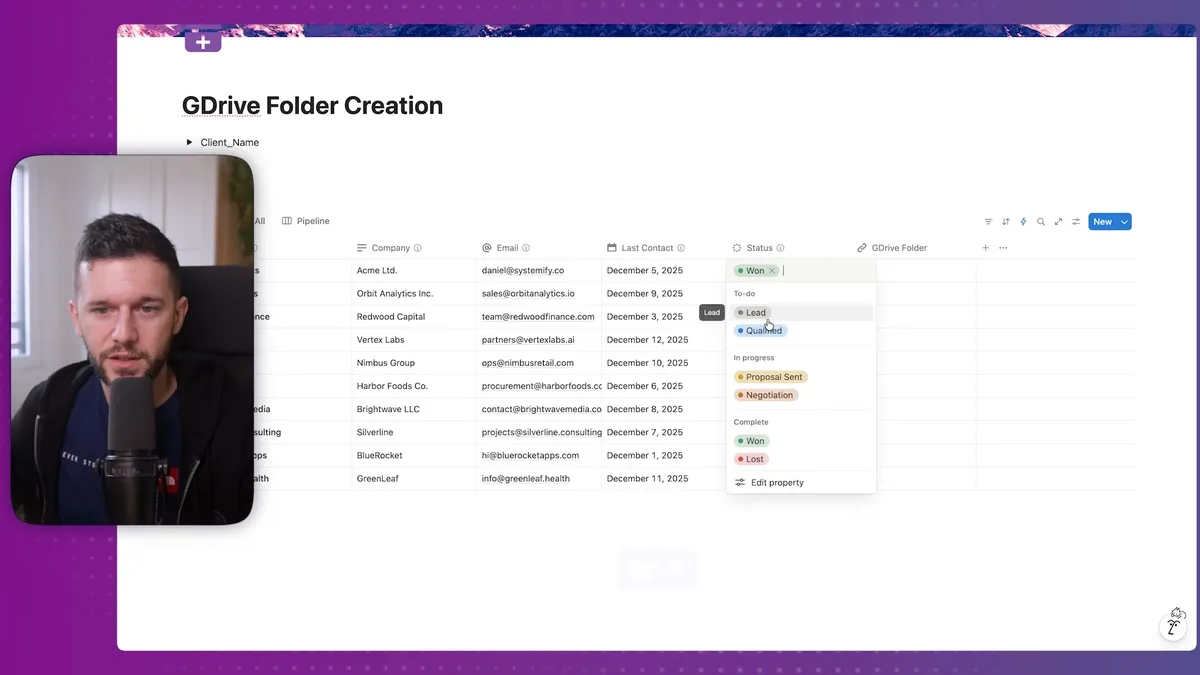
When you change a client's status in Notion, watch Make create all the folders automatically.
You can see each module executing and the green checkmarks showing successful completion.
The magic moment is when you click into the created folder:
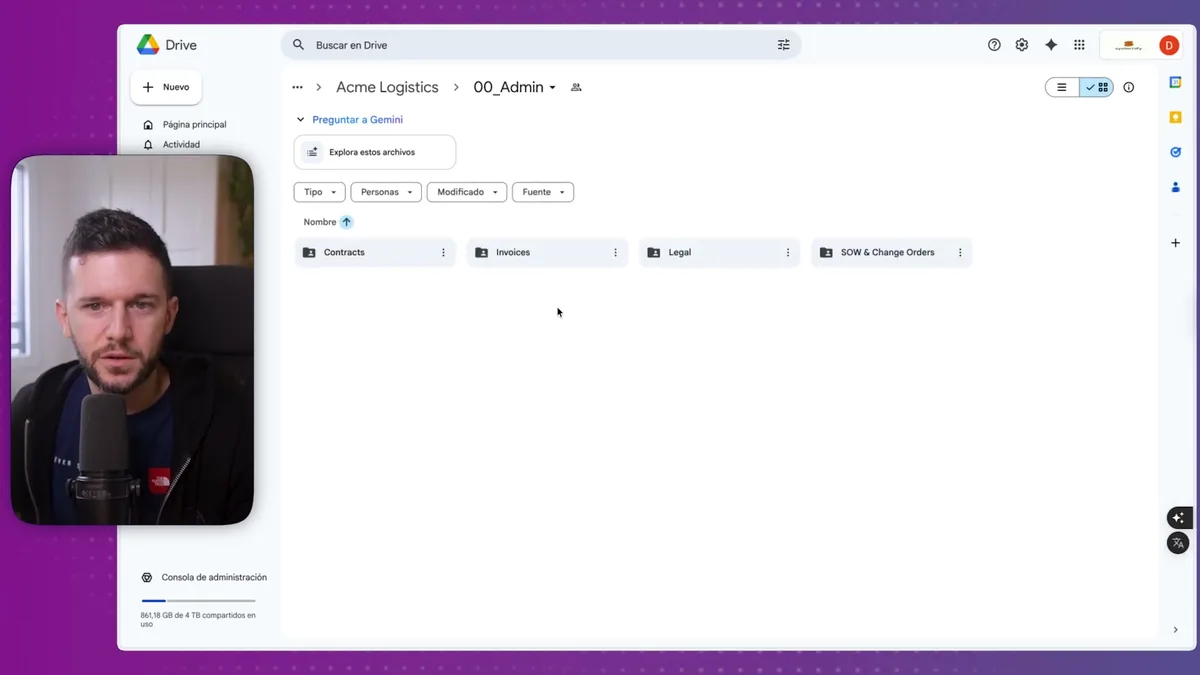
There's your complete folder structure - client name as the root folder, admin folder with all its subfolders, and every other folder perfectly organized.
Your Notion database now has the direct link to this folder.
Click it from Notion anytime to access the client's files, and your client receives immediate access to their project folder the moment they become a paying customer.
This automation has transformed how my clients handle file organization.
Instead of scrambling to create folders after onboarding calls, everything is ready before the client even knows they need it.
The professional impression this makes cannot be overstated.
Bear in mind, this is just one example of how automation can eliminate manual work in your business.
I build automations like this every day for service providers who are tired of doing the same repetitive tasks over and over.
If you're spending too much time on manual processes that could be automated, the ROI on this type of system building is honestly incredible.
Ready to see where your business stands with AI and automation? Take our AI Readiness Scorecard to find out.
Frequently Asked Questions
Do I need coding skills to set up the Google Drive folder automation?
No coding is required. The entire automation is built using Make.com's visual workflow builder, Notion's built-in automation triggers, and Google Drive's standard API modules. You connect the services, configure the folder names and parent locations, and Make handles the rest.
Can I use Zapier instead of Make.com for this automation?
Yes, the same logic works in Zapier or any automation platform that supports webhooks and Google Drive. The core pattern is the same: receive a webhook from Notion, create folders in Google Drive, and update the Notion record with the folder link. Make.com's router feature makes organizing complex folder structures easier, but it is not strictly required.
How do I customize the folder structure for my specific business?
Start with the folders that match your service delivery process. A website developer might use Admin, Discovery, Design, Development, and Launch. A coach might only need Admin, Discovery, Content, and Training. Build the automation with only the folders you actually use, and add more later as your process evolves.
Get more like this in your inbox
AI implementation insights for service business founders. No fluff.