Notion
Master Notion Basics: Complete Beginner's Guide for Business
Learn how to set up Notion for your business in 25 minutes. Build databases for clients, projects, and tasks with this step-by-step beginner guide.
Daniel Canosa ·
TL;DR: Set up Notion for your business by building four core databases (clients, tasks, SOPs, resources), connecting them with relations, then creating filtered views for daily use. Start with this simple foundation and add complexity only when real problems demand it.
Key Takeaways
- Notion is a database tool that happens to look friendly, not just a note-taking app. Understanding this distinction changes how you build systems.
- Every service business needs four core databases: clients, tasks, SOPs (internal documentation), and client resources.
- Relations between databases eliminate duplicate data entry and let you see all tasks, resources, and history from a single client record.
- Nobody should interact with raw databases directly. Create filtered views (Leads, Active Clients, Past Clients) so each person sees exactly what they need.
- Start simple with four databases and three view types, use the system for a month, then add features one at a time based on real friction you encounter.
Look, I've been helping businesses build their systems in Notion since 2020.
I've worked with over 70 companies as a certified Notion consultant, and here's what I see constantly: teams waste ridiculous amounts of time because they don't have the basics right.
A four-person team losing just 30 minutes a day to inefficient systems costs you $20,000 to $40,000 annually.
That's real money walking out the door because your team can't find information, track progress, or coordinate work effectively.
Most businesses treat Notion like a fancy note-taking app.
They miss the fundamental truth: Notion is a database tool that happens to look friendly.
Once you understand this, everything changes.
Today I'm walking you through the exact system I build for clients, but simplified for beginners.
We're covering three core business needs: client management, task tracking, and documentation.
These are the pillars every service business needs to nail.
Building Your Data Foundation (The Backend Nobody Sees)
Here's where most people go wrong.
They start building pretty pages and workflows before they understand what data they need to track.
It's like building a house without a foundation.
Start with databases, not dashboards.
Every business needs four core databases.
First, your client database.
This tracks every client from first contact through project completion.
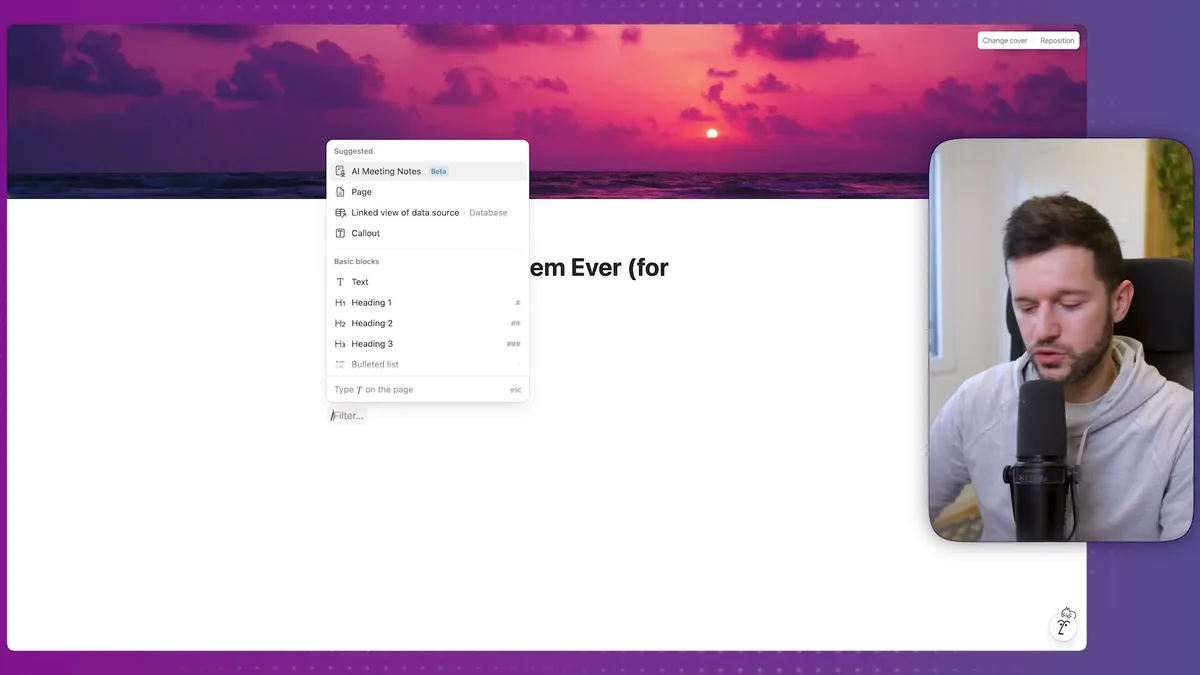
In Notion, you create databases with a simple slash command.
Think of databases like Google Sheets, but smarter.
Each database has properties (your columns) and records (your rows).
For clients, you need basic properties: name, email, intake information.
The magic happens when you add a status property.
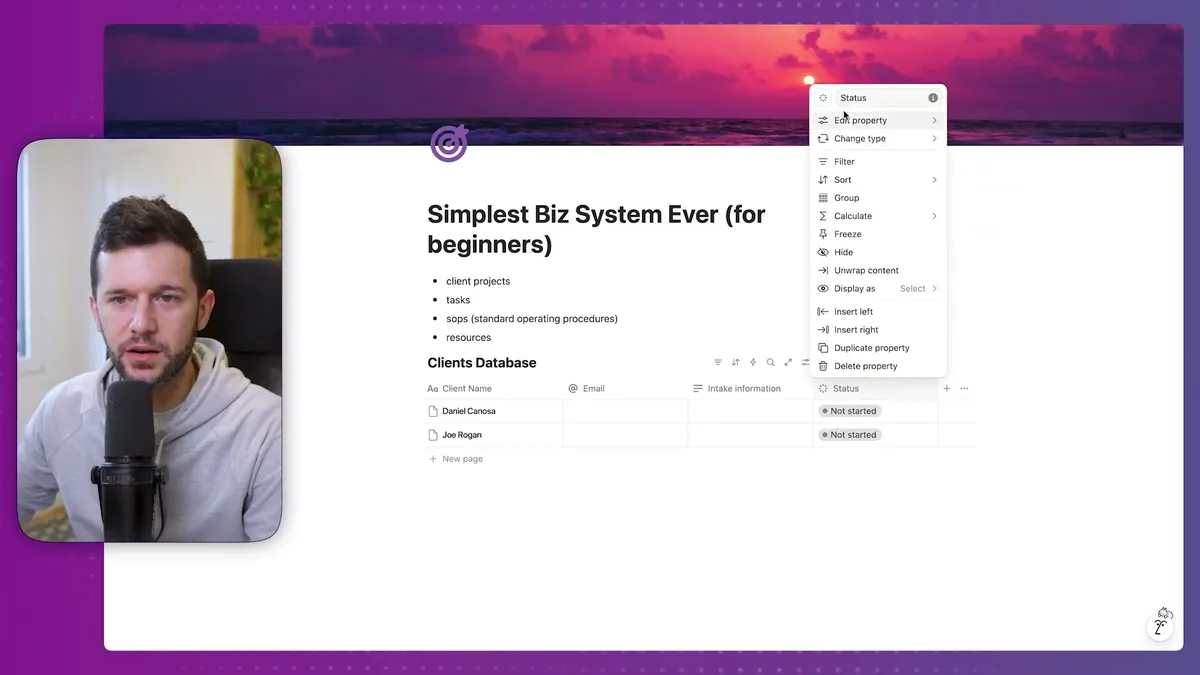
I use five client statuses: Not Started, Signing Contract, Waiting for Payment, Active Client, and Done.
Your statuses should match your actual client process.
Don't overthink this part.
Second database: tasks.
Notion has a task template that works perfectly for most businesses.
I strip out the fancy stuff and keep it simple.
Third and fourth databases: SOPs and client resources.
SOPs are your internal documentation, the "how to do this" guides.
Resources are client-specific documents, contracts, brand guidelines, whatever.
I separate these because they serve different purposes.
Now here's where it gets interesting.
These databases need to talk to each other.
That's where relations come in.
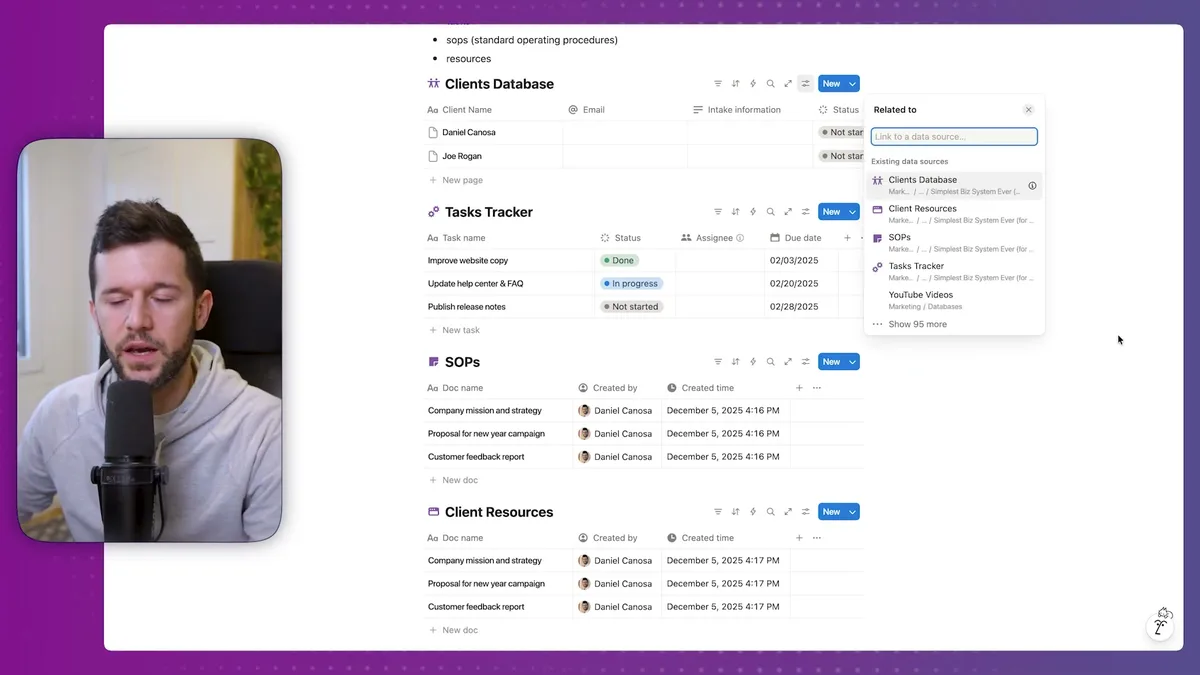
Relations let you connect records across databases.
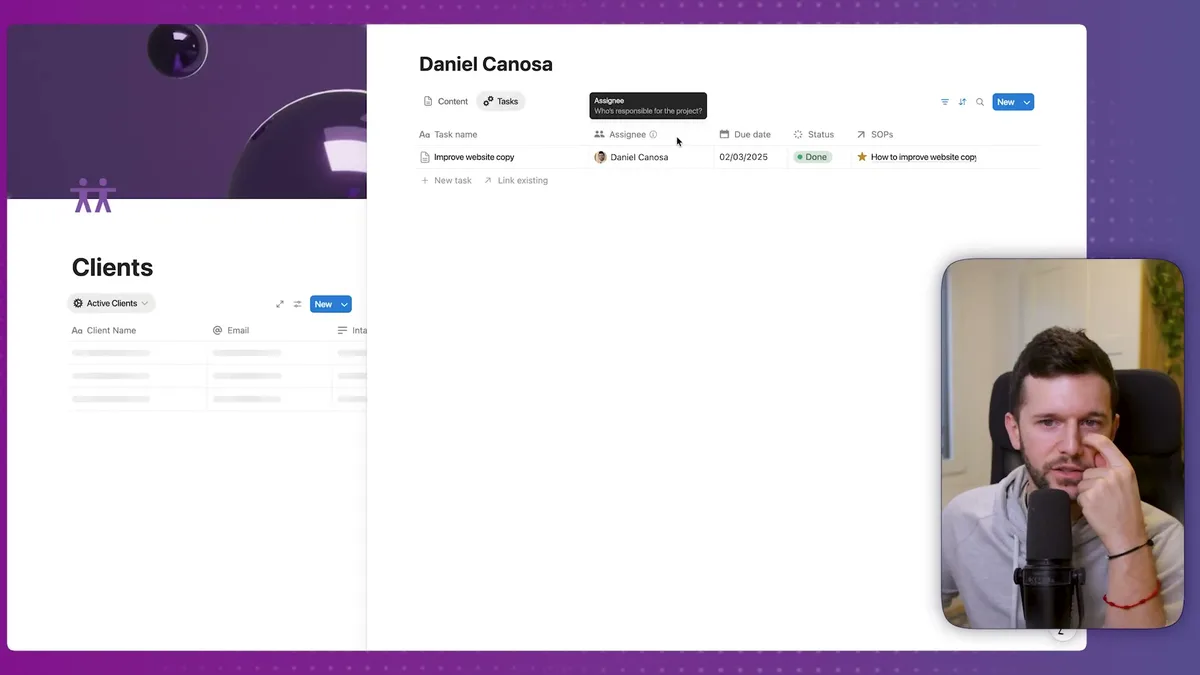
When I link a task to a client, I can see all of Daniel's tasks from his client record.
When I link an SOP to a task, whoever gets assigned that task automatically knows how to complete it.
This is basic relational database thinking, but it eliminates so much confusion.
Bear in mind, you want two-way relations for clients and tasks because you need to see the connection from both sides.
For SOPs, I usually don't need two-way relations because I don't care which tasks use a specific SOP.
Once you build these four databases, organize them properly.
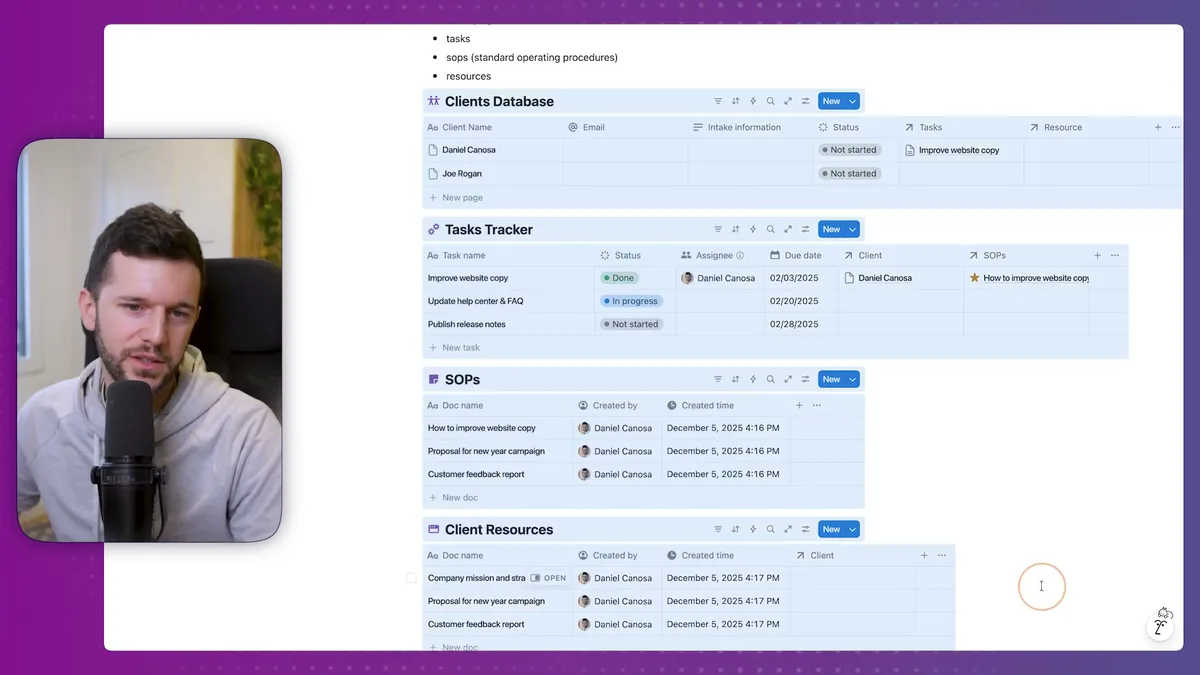
I create a "Backend" page and move all the raw databases there.
This keeps your workspace clean and makes the system structure obvious.
Add icons and make it look professional.
Aesthetics matter more than people admit.
Creating Views That Actually Work (Your Daily Interface)
Now we get to the part users actually see.
Nobody should interact with raw databases.
Raw databases are overwhelming and useless for daily work.
You need filtered views that show exactly what each person needs to see.
Think like a user, not a database administrator.
For clients, I create three views: Leads, Active Clients, and Past Clients.
Leads are anyone who hasn't paid yet (statuses: Not Started, Signing Contract, Waiting for Payment).
Active Clients have paid and are in progress.
Past Clients are done.
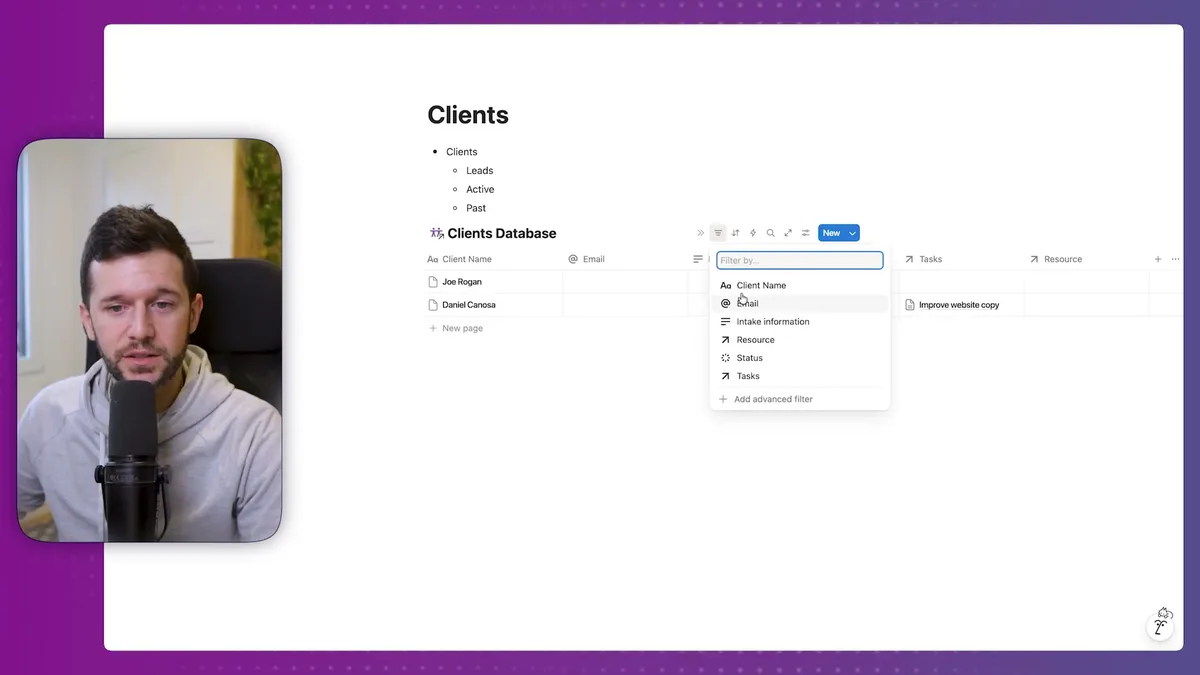
You create these views using linked databases with different filters.
Same data, different windows into it.
The beauty is that when you update a client's status in one view, it automatically appears in the correct view everywhere else.
No duplicate data entry.
No confusion about where information lives.
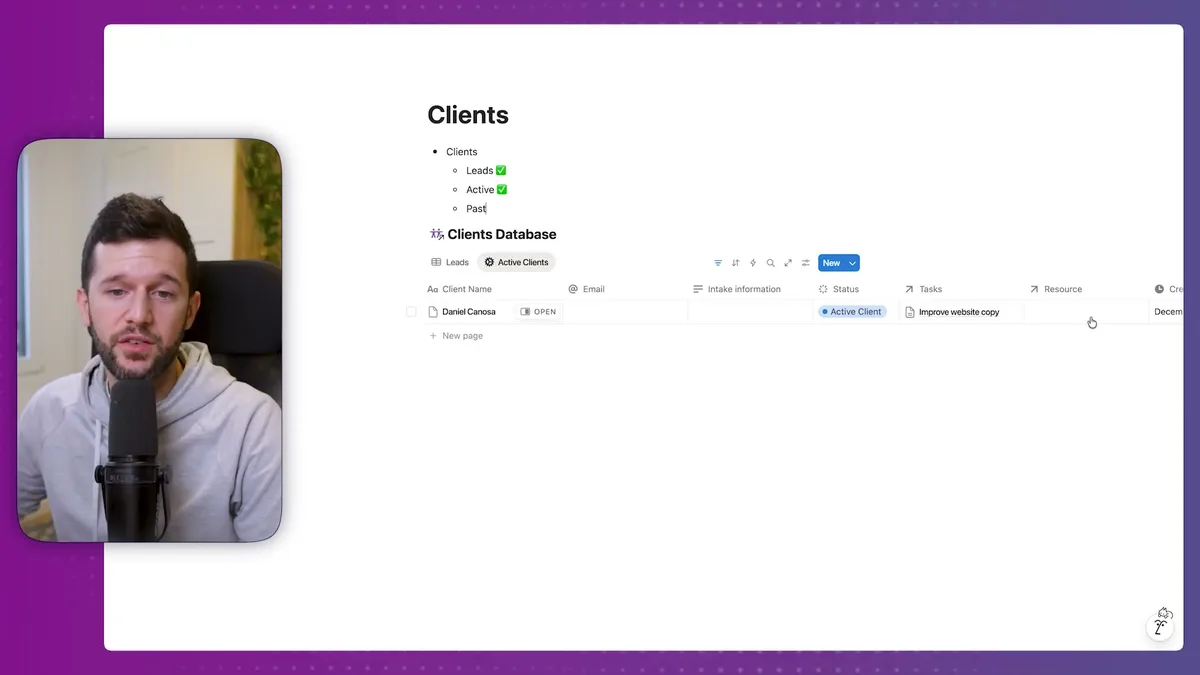
I set up all three views on one page using Notion's full-width layout.
You can see your entire client pipeline at a glance.
For tasks, I create two essential views: Pending Tasks and My Tasks.
Pending Tasks shows everything that's not done, usually grouped by assignee.
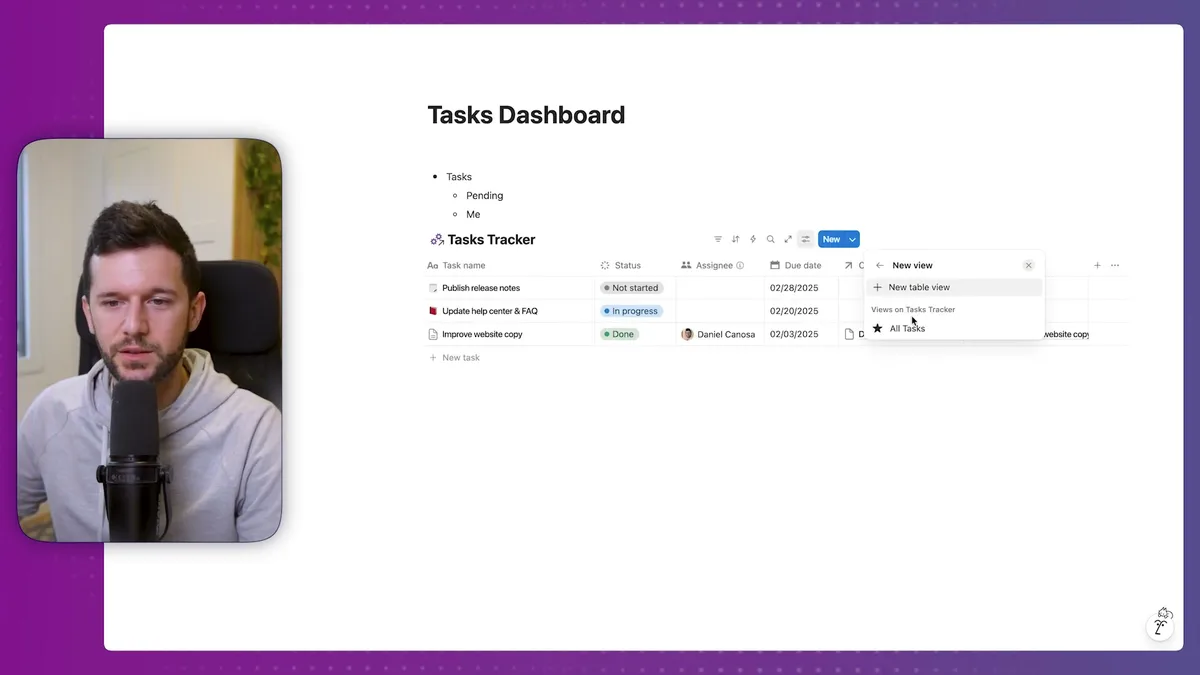
This gives managers a clear picture of team workload.
My Tasks is more interesting.
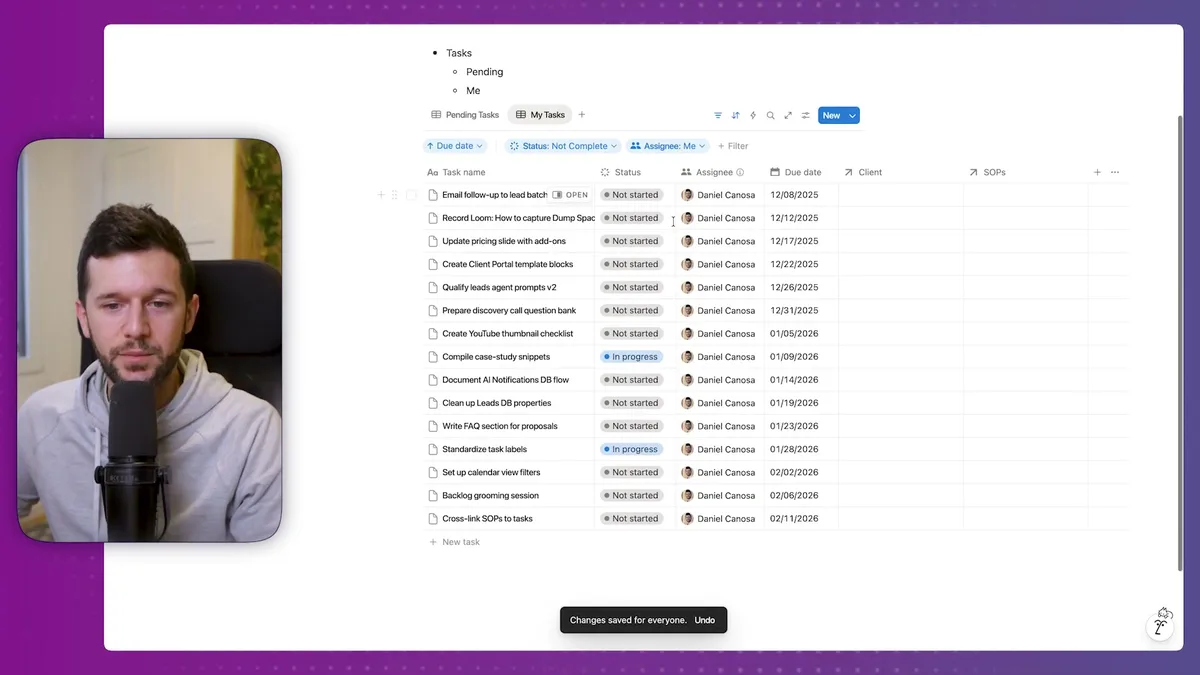
Each team member sees only their assigned tasks.
The filter automatically adapts to whoever is logged in.
This eliminates the noise and keeps people focused on their actual responsibilities.
Bear in mind, every database record in Notion is also its own page.
When you click into a client record, you get a full workspace for that client.
Notes, documents, task lists, whatever you need.
This is where the magic really happens for client management.
Putting It All Together (The System in Action)
Here's how this simple system eliminates the most common business headaches.
Client handoffs become seamless.
When you bring on a new client, you create one record in the client database.
Everything related to that client automatically organizes itself.
Their tasks filter into the right views.
Their resources stay connected.
Their project history builds naturally.
Task management becomes automatic.
Instead of hunting through Slack messages or email threads to figure out what needs to happen, your team looks at their personalized task view.
Everything they need to know is right there: what to do, when it's due, and how to do it (via linked SOPs).
Knowledge management stops being a nightmare.
Your SOPs live in one place, linked to the tasks they support.
Client resources stay organized by client, accessible to anyone who needs them.
No more "where did we put that contract" or "how do we do this again."
Reporting becomes effortless.
Because everything is connected through relations, you can see patterns instantly.
Which clients have the most tasks?
Which processes need better documentation?
Who's overloaded with work?
The data tells the story without manual reporting.
Now, this is not all rainbows.
There are things this system doesn't handle well.
It's not great for complex project timelines.
It won't replace your accounting software.
It's not built for customer support ticketing.
But for the core operations of most service businesses, this covers about 80% of what you need.
The key is starting simple and adding complexity only when you actually need it.
I see too many businesses try to build the perfect system on day one.
They end up with something so complicated that nobody uses it.
Start with these four databases and three types of views.
Use the system for a month.
Then add one feature at a time based on real problems you encounter.
Bear in mind, the goal isn't to build a perfect system.
The goal is to build a system that eliminates the daily friction that costs you time and money.
This setup will do that for most service businesses.
It gives your team clarity on what needs to happen, when it needs to happen, and how to make it happen.
That's the foundation of everything else.
Ready to see where your business stands with AI and automation? Take our AI Readiness Scorecard to find out.
Frequently Asked Questions
How many databases does a small business actually need in Notion?
Most service businesses can run effectively on four core databases: clients, tasks, SOPs, and client resources. These cover client management, task tracking, and documentation. You can always add more later, but starting with these four gives you a solid foundation without unnecessary complexity.
What are relations in Notion and why do they matter?
Relations are connections between databases that let you link records across them. For example, linking a task to a client means you can see all of that client's tasks from their record, and vice versa. This eliminates duplicate data entry and keeps your information consistent across the entire workspace.
Should I build dashboards or databases first in Notion?
Always build databases first. Databases are the foundation that stores your actual business data. Dashboards and views are just filtered windows into that data. Building dashboards before databases is like decorating a house before pouring the foundation.
Get more like this in your inbox
AI implementation insights for service business founders. No fluff.