AI & Automation
Notion Property Level Access: Complete Guide & Use Cases
Learn how Notion's new property-level access controls work. Restrict database properties by user, manage permissions, and explore practical use cases.
Daniel Canosa ·
TL;DR: Notion's new property-level access controls let you restrict which database properties specific users can see or edit, not just which pages they can access. Available on Business and Enterprise plans, this feature eliminates the need for workaround databases and enables precise permission setups for things like salary fields, contract values, and project hours.
Key Takeaways
- Property-level access is separate from page-level access. Page access controls which database entries a user can open. Property access controls which fields they can see or edit within those entries.
- There are six permission levels for each property: inherit from database, can edit property and values, can edit values only, can view property and values, can view property only, and no access.
- Users with full database access always see everything. Property restrictions only apply to users with lower permission levels, so be more careful about who you give full access to.
- Filters that use restricted properties break the view entirely for users without access to that property. Design your views with this in mind.
- The least restrictive exception always wins. If someone falls into two exception groups with different access levels, they get the higher of the two permissions.
How Property-Level Access Actually Works
Notion property-level access lets you control which fields are visible or editable per user, per property, without any workarounds.
Before this, if you had a CRM with contract values that only your finance team should see, you had to create a separate database to hold that sensitive data and restrict access to that database.
It worked, but barely.
It was cumbersome to set up, annoying to maintain, and honestly, most clients I worked with just lived without it because the workaround was more trouble than it was worth.
Now, it's built directly into the property settings.
Here's how the setup looks in practice.
Every database property now has a property access section when you click on it.
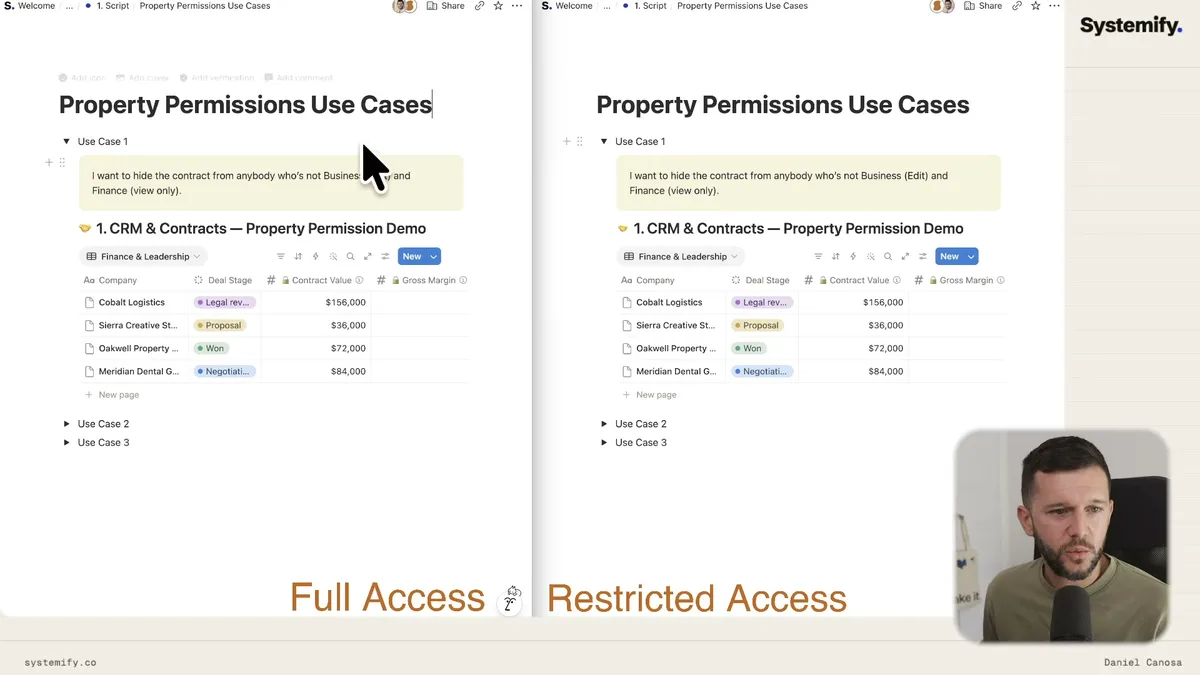
The left side shows the full access view, the right side shows what a restricted user sees.
Bear in mind that only people with full access to the database can modify property access settings.
This is not something a member with edit access can change, so you're not going to accidentally have someone locking themselves out of their own fields.
The setup has two parts: default access and exceptions.
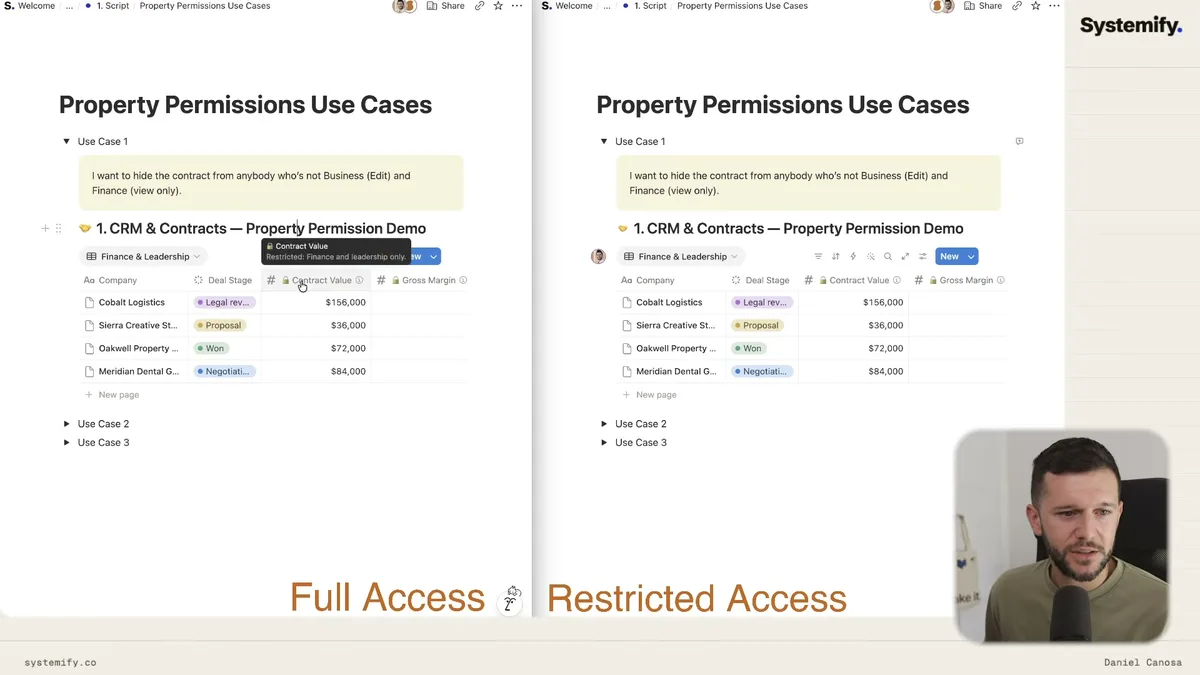
Default access is the baseline permission for everyone who doesn't have full database access.
You set it once, and it applies to the whole team unless you create an exception.
Exceptions let you override the default for specific people, member groups, integrations, or person properties within the database.
That last one is especially useful because it means you can say "the person in the Owner field of this record can edit this property" without having to manually list every person.
Now, the six permission levels themselves.
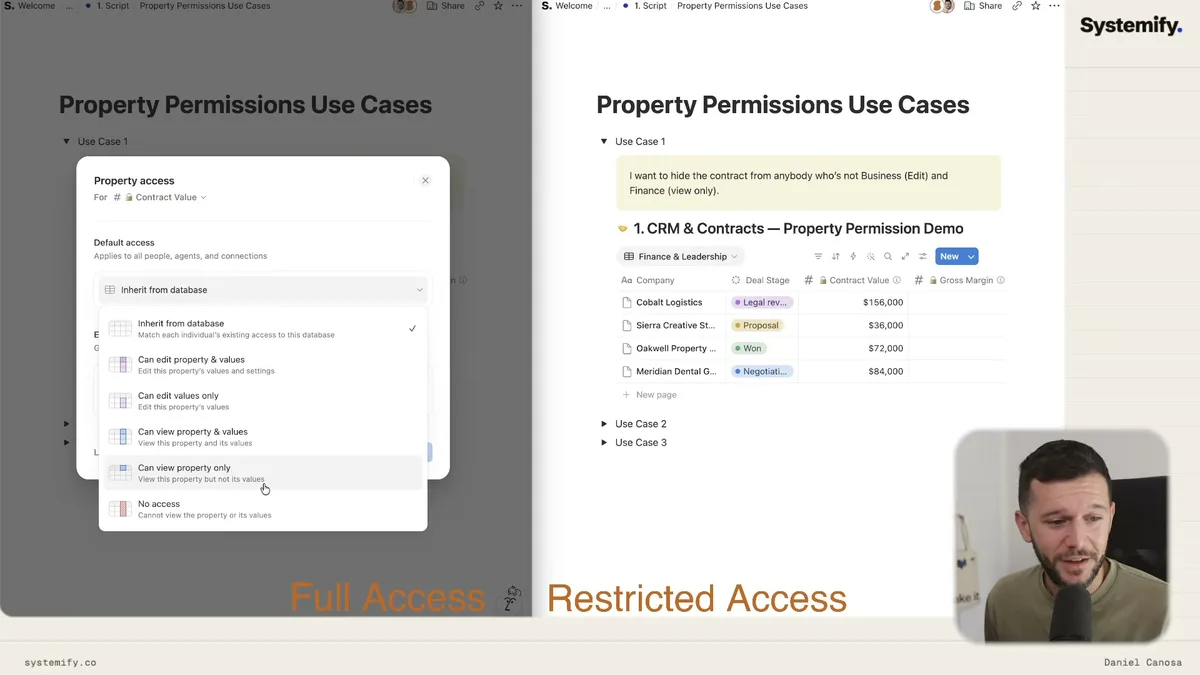
They go from most to least permissive:
- Inherit from database - whatever access the person has to the database, that's what they get for this property
- Can edit property and values - they can rename the property and edit its values (this was basically the only option before)
- Can edit values only - they can use the property and fill it in, but they can't rename or delete it
- Can view property and values - read-only for both the field and its contents
- Can view property only - they can see the property exists, but not its values
- No access - the property is completely invisible, like it doesn't exist for that person
In my opinion, "can view property only" is the oddest one.
I couldn't think of a use case for it initially, but I actually found one later in the video and I'll get to that.
One more thing to know before we get into examples.
When two exceptions overlap for the same user, the least restrictive one wins.
So, let's say someone is in the HR group which gives them view-only access, and they're also the manager listed on a specific record which gives them edit access.
For that record, they get edit access because that's the less restrictive permission.
For every other record where they're not the listed manager, they fall back to view-only.
That behavior is sensible, but it means you need to think through your exception rules before you publish them.
Three Use Cases Worth Stealing
Property permissions unlock three categories of sensitive data that most Notion workspaces have been mishandling: financial data, HR data, and project cost estimates.
These aren't hypothetical.
Each one is based on a real request from a client I've worked with.
Use Case 1: CRM Contract Values
You have a CRM with company records, deal stages, and contract values.
The sales team should be able to work in this database, but they shouldn't be able to see or edit contract values.
Business leadership should be able to edit them, and finance should be able to view them.
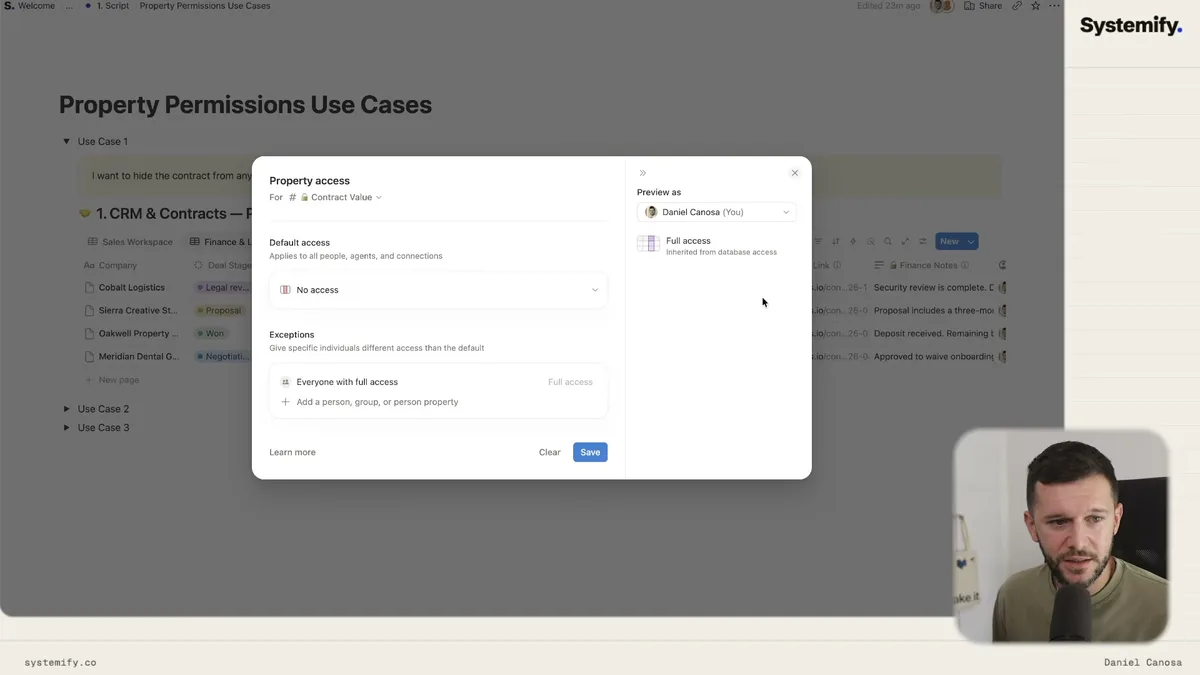
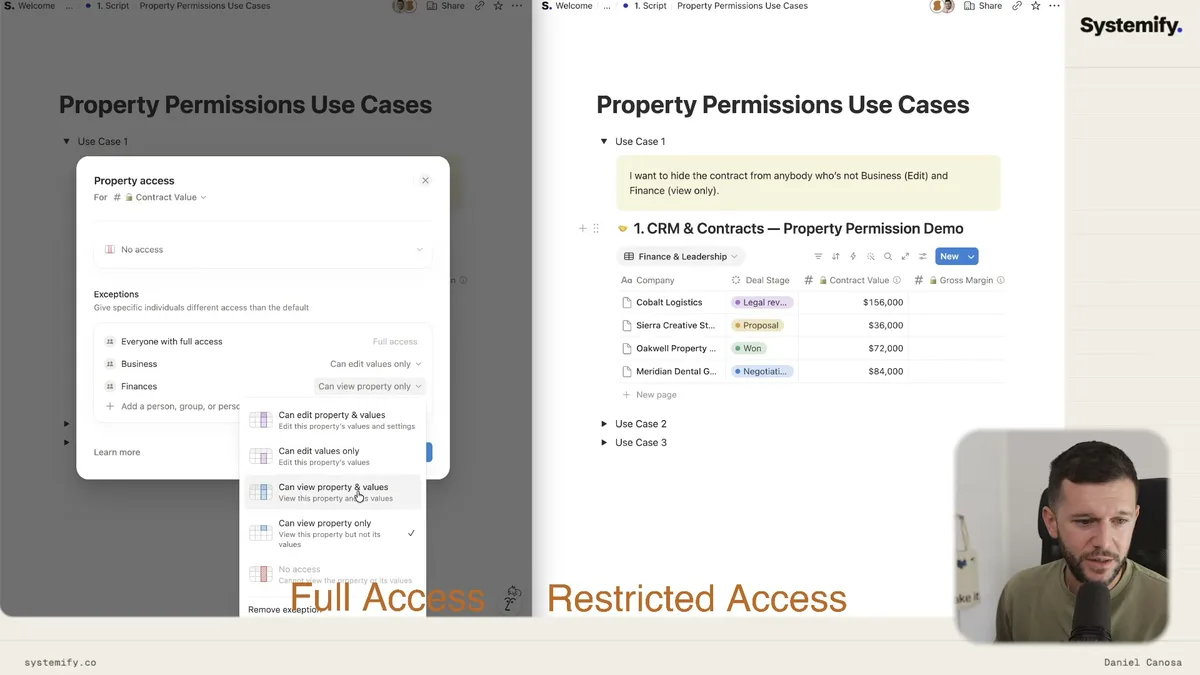
Setup: Set the default access to no access, then add exceptions for the business member group with "can edit values" and the finance member group with "can view property and values."
That's it.
The contract value field disappears entirely for anyone who isn't in those two groups.
One thing to watch out for: if a database view has a filter based on a restricted property, the entire view breaks for users who don't have access to that property.
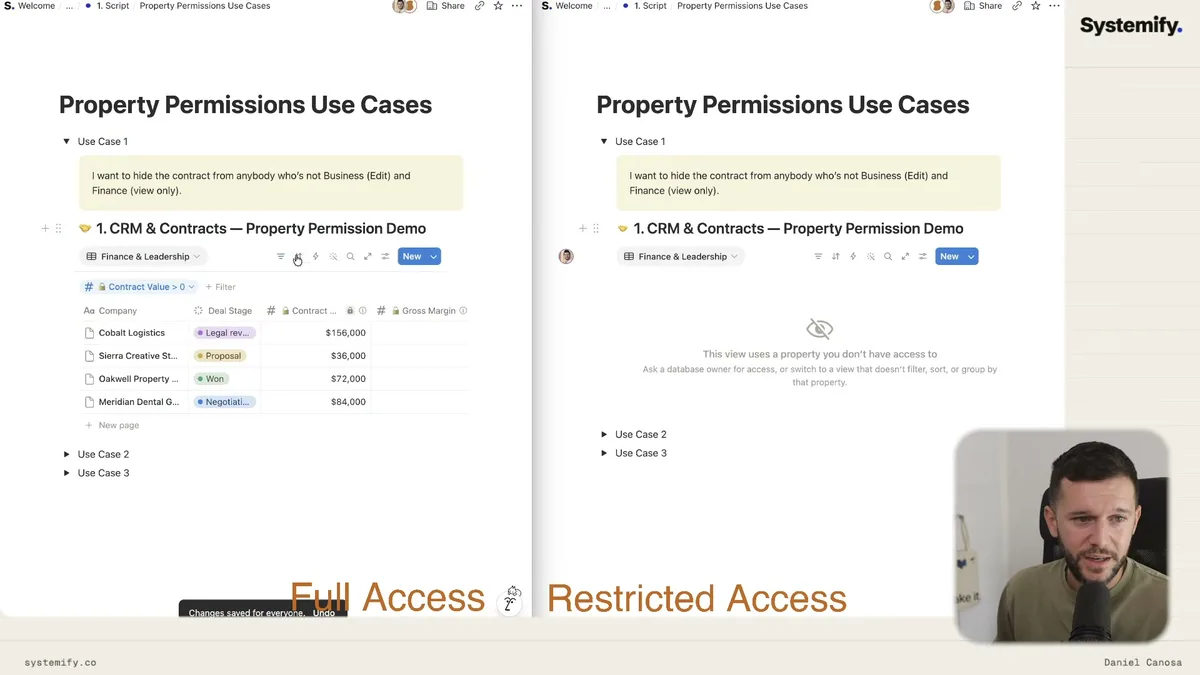
Notion throws an error and the user can't see the view at all.
So if you're going to restrict a property, make sure none of your shared views are filtering by it.
Use Case 2: HR Salary Directory
This one is more nuanced.
You have a people directory with salary information.
Recruiters should be able to edit the salary only for people they're directly managing.
HR should be able to view all salaries.
Business leadership should be able to edit all salaries.
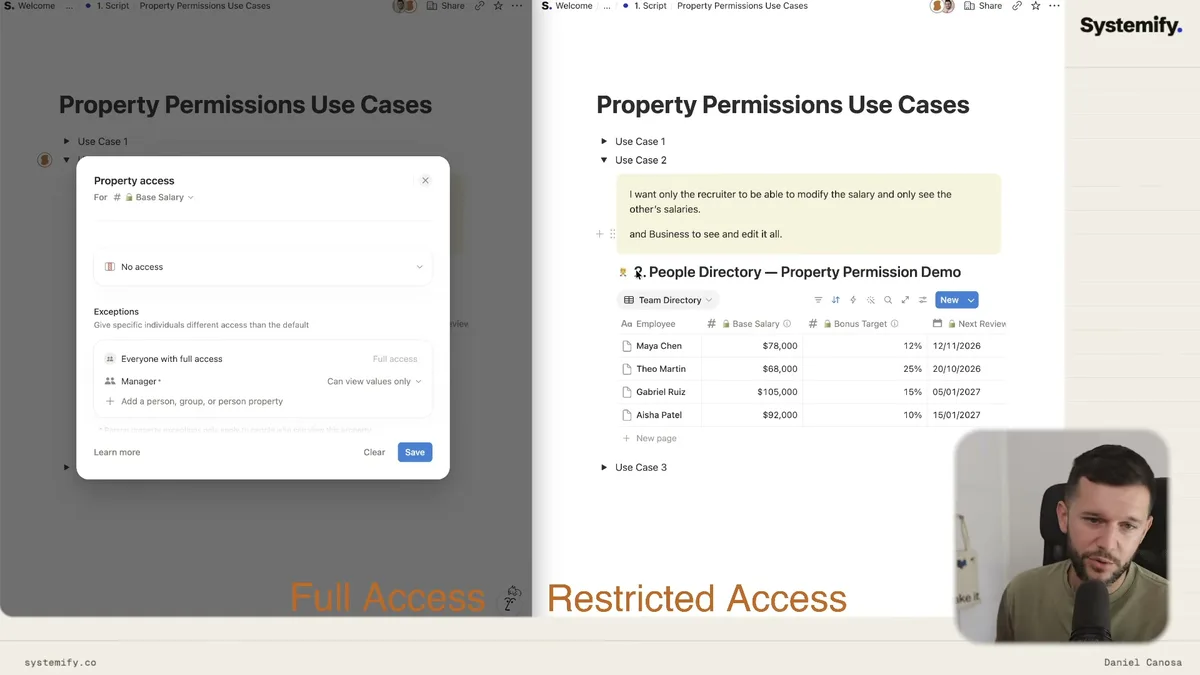
Setup: Start with no access as the default.
Then add an exception for the Manager property (a person property within the database) with "can edit values only."
Add an exception for the HR group with "can view property and values."
Add an exception for the business group with "can edit property and values."
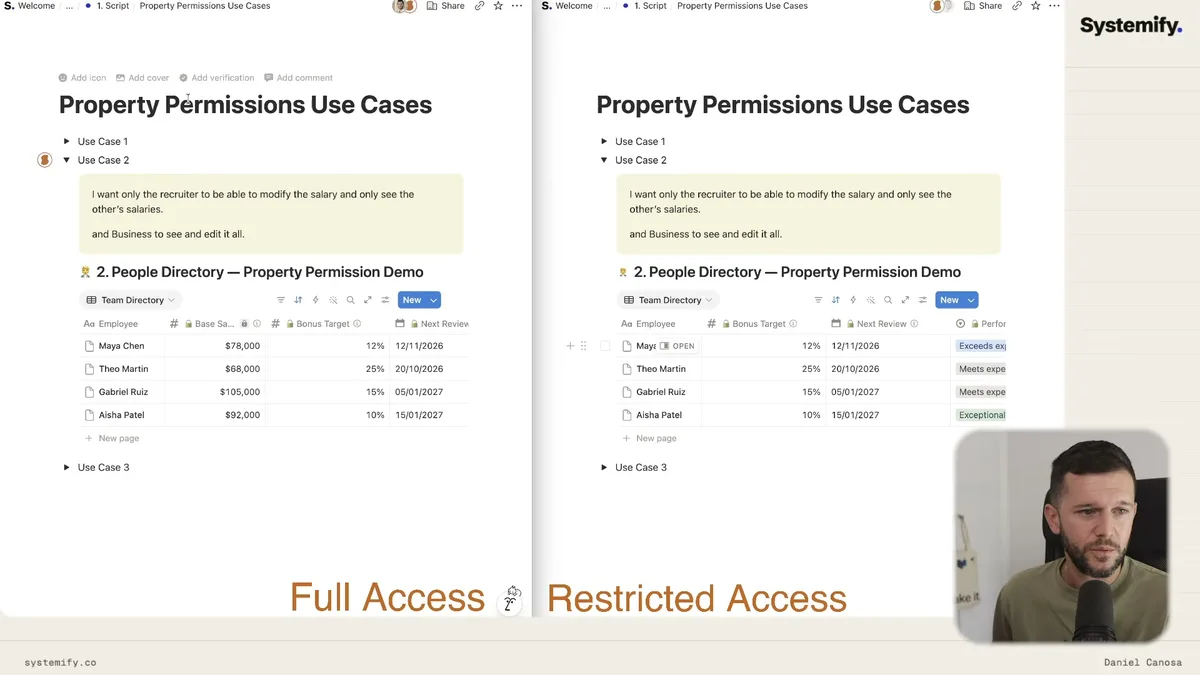
The result: recruiters can only edit salaries for records where they're listed as the manager.
For every other record, they fall into the HR group exception and can only view.
In my opinion, this is the most powerful pattern in this whole feature.
Using person properties as exceptions means your permissions are tied to the data itself, not a static list of people.
When someone changes role or takes over a client, the permissions update automatically.
Use Case 3: Project Estimated Hours
This one I'm actually building right now for a client.
They want estimated hours visible on every project, but only the project manager should be able to change them.
Team members working on the project can see the number, but they can't touch it.
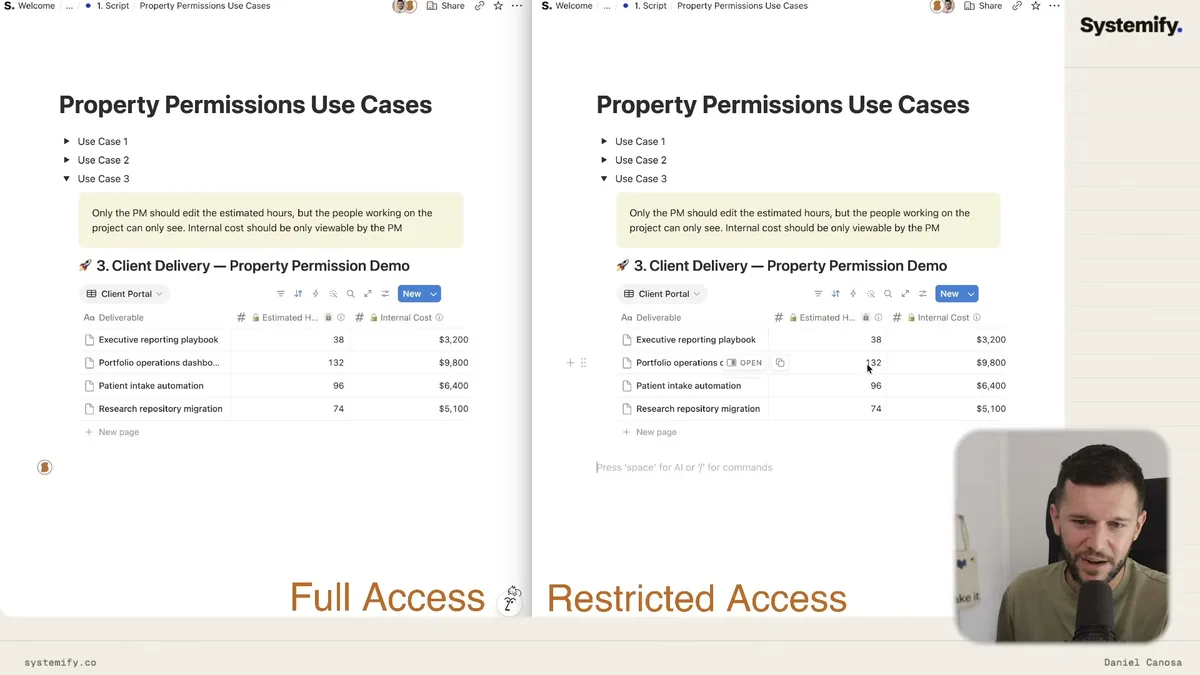
Setup: Add the Owner (person property) as an exception with "can edit values only."
Add the Team Members (person property) as an exception with "can view property and values."
Bear in mind that for person property exceptions to work, those people need at least view access to the database in the first place.
If someone isn't a database member at all, the exception won't do anything for them.
The "can view property only" option finally made sense to me here.
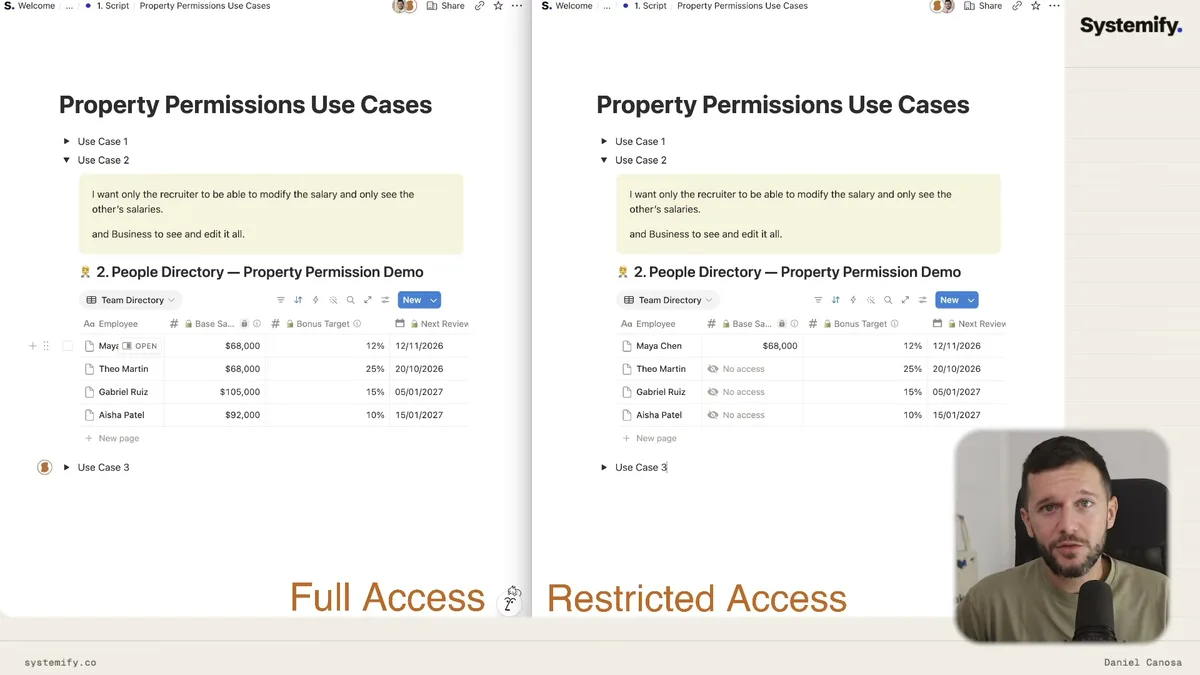
If you want Maya to see her own salary entry but not anyone else's, you'd set the default to "can view property only" (so she can see the field exists), and then add her specifically as an exception with "can view property and values."
Everyone else sees the field label but not the actual numbers.
Is it a common setup? No.
But for that specific HR use case, it's exactly right.
What This Actually Changes About How You Build in Notion
Property-level access fundamentally changes the order of operations for building Notion systems.
Before this, you'd design the database, build the views, and then figure out permissions at the end, usually discovering too late that you needed a second database just to hide a few fields.
Now, permissions can be part of the initial database design.
You decide which fields are sensitive, you set the defaults upfront, and you build everything else around that.
That's the correct way to build.
Honestly, permissions have always been one of the most underestimated parts of a Notion system.
Every client I work with underestimates how much thought it requires and then runs into problems later when someone accidentally overwrites critical data or sees something they shouldn't.
This feature reduces both of those failure modes significantly.
A few things to keep in mind as you roll this out:
- Be more conservative with full access. Since full access bypasses all property restrictions, handing it out freely defeats the purpose. If someone just needs to create records and fill in fields, "can edit content" is enough.
- Member groups are still the right foundation. I keep recommending member groups because they're scalable. You set up the group once, assign permissions to the group, and then just add or remove people from the group as your team changes. Much easier than updating individual exceptions every time someone gets promoted or leaves.
- Build your views after your permissions. Filters and sorts that reference restricted properties will break the view for users without access. Sequence matters.
This is not all rainbows, of course.
It's only available on the Business and Enterprise plans, which means it's another reason Notion is pushing teams toward higher tiers.
For a small personal workspace, you don't need this.
But for any team managing actual company data, financials, HR records, or client-facing systems, the plan cost is worth it, and this feature is a meaningful part of why.
Frequently Asked Questions
Q: What is the difference between page-level access and property-level access in Notion?
Page-level access controls which database entries a user can open and see. Property-level access controls which specific fields within those entries a user can view or edit. They work together but operate independently, so you can restrict someone to certain pages and also restrict which fields they see on those pages.
Q: Who can modify property access settings in Notion?
Only users with full access to the database can modify property access settings. Users with edit or comment access cannot change permission configurations for any property, even if they can see and interact with that property's values.
Q: What happens if two access exceptions apply to the same user?
The least restrictive exception wins. For example, if a user is in an HR group with view-only access but is also listed as the manager on a specific record which grants edit access, they get edit access for that record. For all other records, they fall back to the HR group's view-only permission.
Q: Can filters and views break if a property is restricted?
Yes. If a database view uses a filter that references a property the user doesn't have access to, Notion will block that user from seeing the view entirely and show a permission error. Build your views with this in mind, and avoid filtering by restricted properties in views that are shared across different access levels.
Ready to see where your business stands with AI and automation? Take our AI Readiness Scorecard to find out.
Get more like this in your inbox
AI implementation insights for service business founders. No fluff.