Notion · AI & Automation
Turn Voice Into Notion Tasks: No Typing Required
Learn how to create Notion tasks by voice using Voice Notes and Make. Capture ideas instantly with this simple 5-minute setup guide.
Daniel Canosa ·
TL;DR: Use Voice Notes, Make.com, and an AI agent to turn spoken words into structured Notion tasks automatically. Speak into your phone or Apple Watch, and the system transcribes your voice, identifies the task, links it to the right client, sets a due date, and creates it in your Notion database. Setup takes about five minutes.
Key Takeaways
- The system uses three tools: Voice Notes for capture, Make.com for automation, and an AI agent to interpret the transcript and route it to the correct Notion database.
- An AI agent (not a rigid step-by-step automation) handles the decision-making because the logic varies depending on what you say, including whether to link a client, set a due date, or name the task.
- Injecting today's date into the AI agent's system prompt is critical. Without it, relative dates like "tomorrow" or "next week" will be calculated incorrectly.
- The same architecture works for more than tasks. Point the agent at different Notion databases to capture content ideas, journal entries, project notes, or client leads by voice.
- A lightweight AI model (like OpenAI's mini or nano) is sufficient for this use case. The reasoning required is simple, so there is no need to spend on larger models.
There's a statistic that says we forget 50% of our ideas within an hour and 90% within a week.
Honestly, I think I forget 90% within five minutes.
I'll be in the middle of something, a thought comes up, I tell myself I'll write it down later, and then it's gone.
So I built something to fix that.
What I'm going to show you is how to capture any idea or task just by speaking into your phone or Apple Watch, and have it land automatically as a structured task inside Notion, linked to the right client, with a due date, no typing required.
This took me about five minutes to set up.
And yes, fair warning, it might give you a very good excuse to finally buy an Apple Watch.
The Tech Stack (And Why I Chose Each Piece)
There are three tools involved here.
Notion is where everything lands.
You probably already have a task database if you've been using Notion for a while. If not, a simple one works fine. The system is going to create pages inside it automatically.
Voice Notes is the second piece.
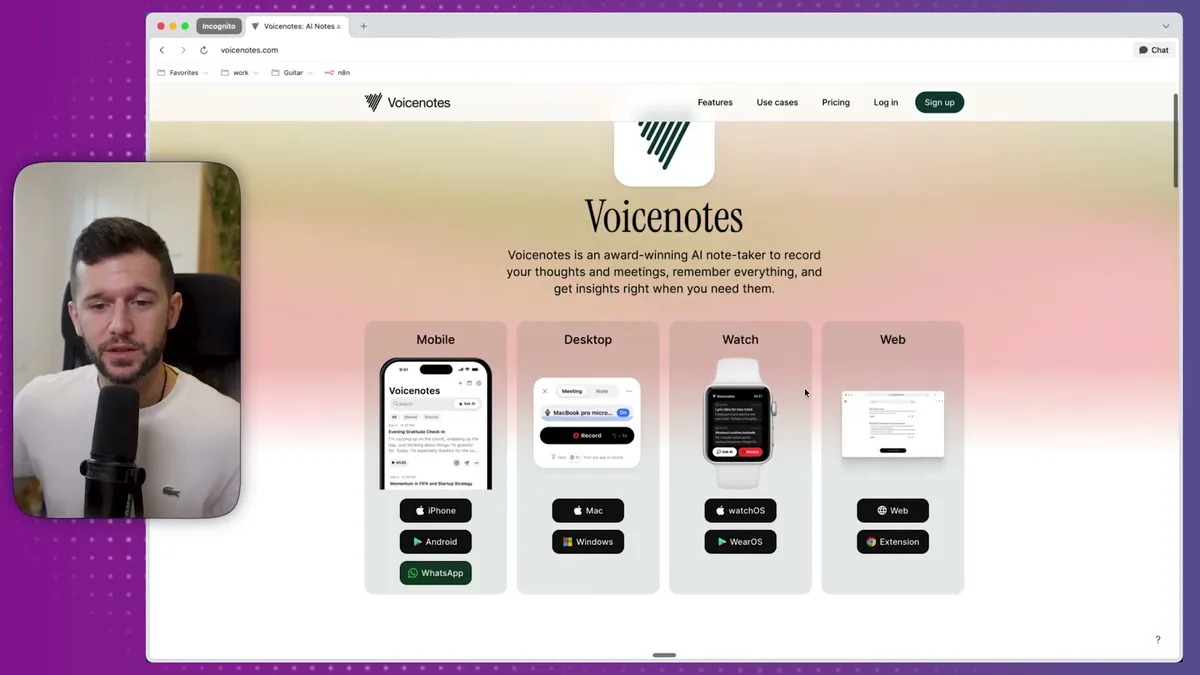
It works on iPhone, Android, Mac, Windows, and, the reason I love it, watchOS.
Because I always have my watch on me. That means I always have a way to capture whatever comes to mind, even when my phone isn't in my hand.
Bear in mind that this is a paid app. It's $14.99 per month, or about $8 per month if you pay annually. I spent time trying to find a free alternative and couldn't. We live in the subscription era, basically.
The third tool is Make, which is where the automation lives.
The reason I'm using Make specifically, and not a simpler automation tool, is because I'm using an AI agent inside it. The logic here isn't linear. Depending on what I say, the agent needs to decide whether to look up a client, whether to set a due date, what to name the task. An AI agent handles that better than a rigid step-by-step flow.
How the Setup Actually Works
The trigger is a webhook.
A webhook is basically a URL that listens for incoming data. When Voice Notes captures my audio and transcribes it, it needs somewhere to send that transcript. The webhook is that destination.
In Make, you search for "webhook" and it generates a URL for you.
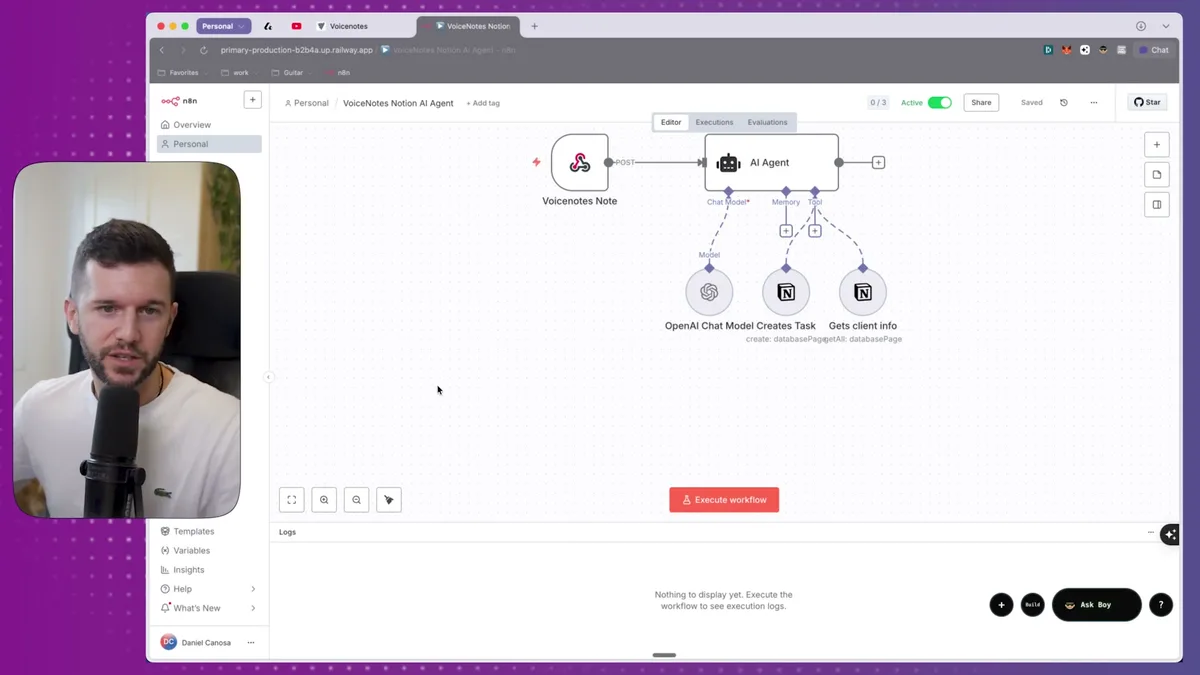
That URL is what connects everything.
Then in Voice Notes, you go to Settings, scroll down to Integrations and Automations, find Webhooks, and paste that URL.
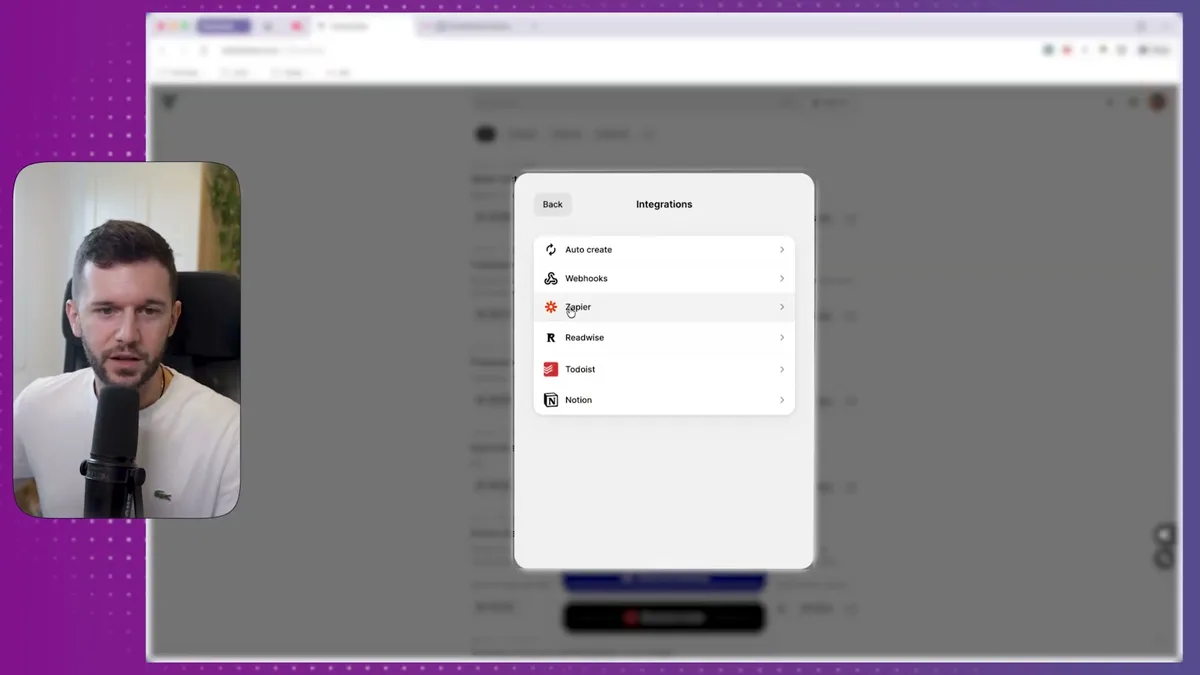
You also choose which event triggers it. In this case, I set it to fire whenever I create a new note. So the moment Voice Notes finishes transcribing what I said, it sends the transcript to Make automatically.
One thing to bear in mind: the HTTP method needs to be set to POST. Because you're posting data to the webhook, not just pinging it. It's a small setting but if you miss it, nothing works.
Now the AI agent is where it gets interesting.
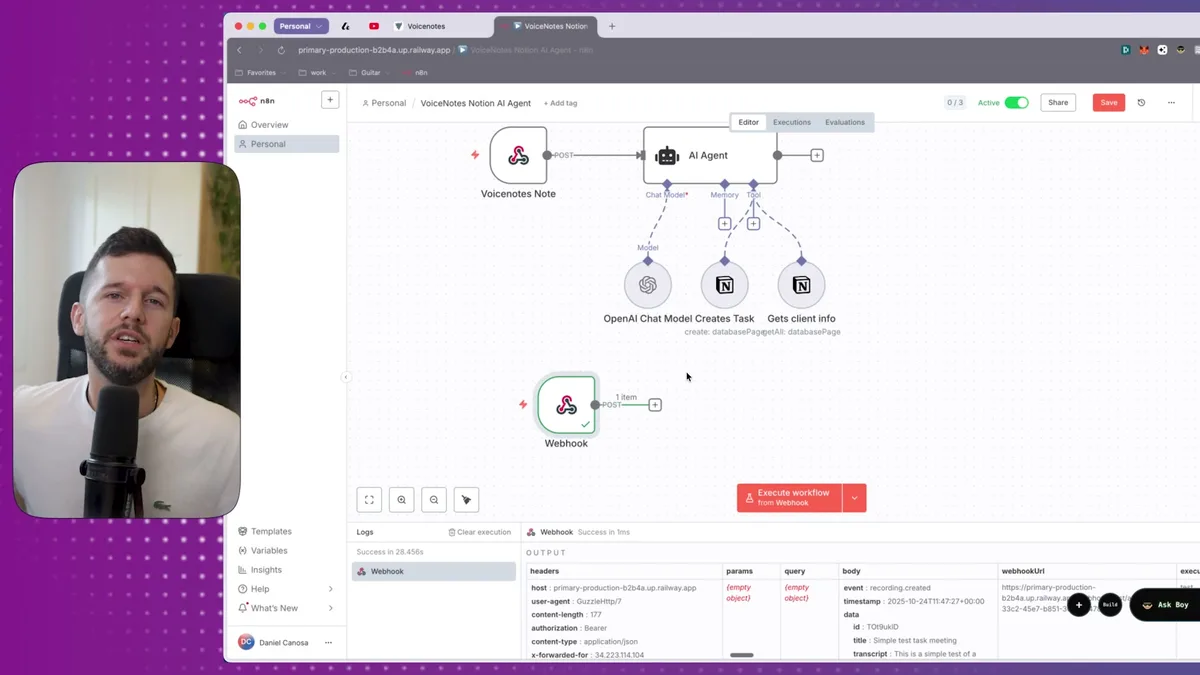
The agent receives the transcript and then decides what to do with it.
Here's the system prompt I gave it, roughly:
- You're a helpful assistant managing my clients and tasks in Notion
- Today's date is [dynamic JavaScript expression]
- Whatever I send you, always create it as a task in Notion
- The client field only gets filled if I mention a specific client by name
- If you can find them in the client database, link them, if not, leave it blank
- Do not ask for clarification, just act on the information you receive
The date injection is important.
If I say "remind me to do this tomorrow," the AI needs to know what today actually is. So I pass in today's date as a JavaScript expression inside the system prompt. Without that, the AI has no reference point for relative dates.
I actually made this mistake in my first test and the due date came out wrong. The fix is just making sure that part of the prompt is set as an expression, not plain text.
The agent has two tools available:
- Create a page in a Notion database, specifically my tasks database
- Get all pages from my clients database
The second tool is what makes the client-linking work.
The agent pulls all my clients, reads what I said in the transcript, figures out if I mentioned one of them, and if so, grabs their Notion page ID and attaches it to the task.
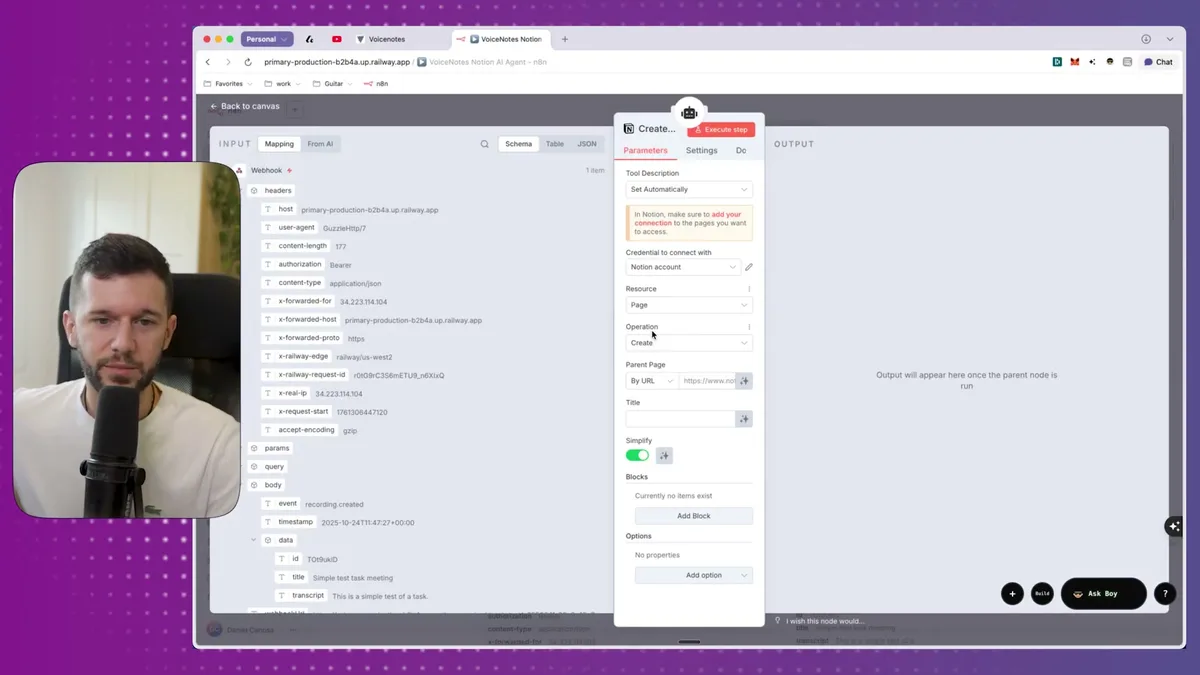
For the task creation tool, the AI fills in:
- The title, based on the transcript
- The due date, if I mentioned one
- The client ID, if one was found
That's it. The AI decides what goes where. I just talk.
Here's what a real test looked like:
I said: "I need to create an invoice for today."
The webhook received the transcript. The agent pulled my client list. It thought for a second. It created the task.
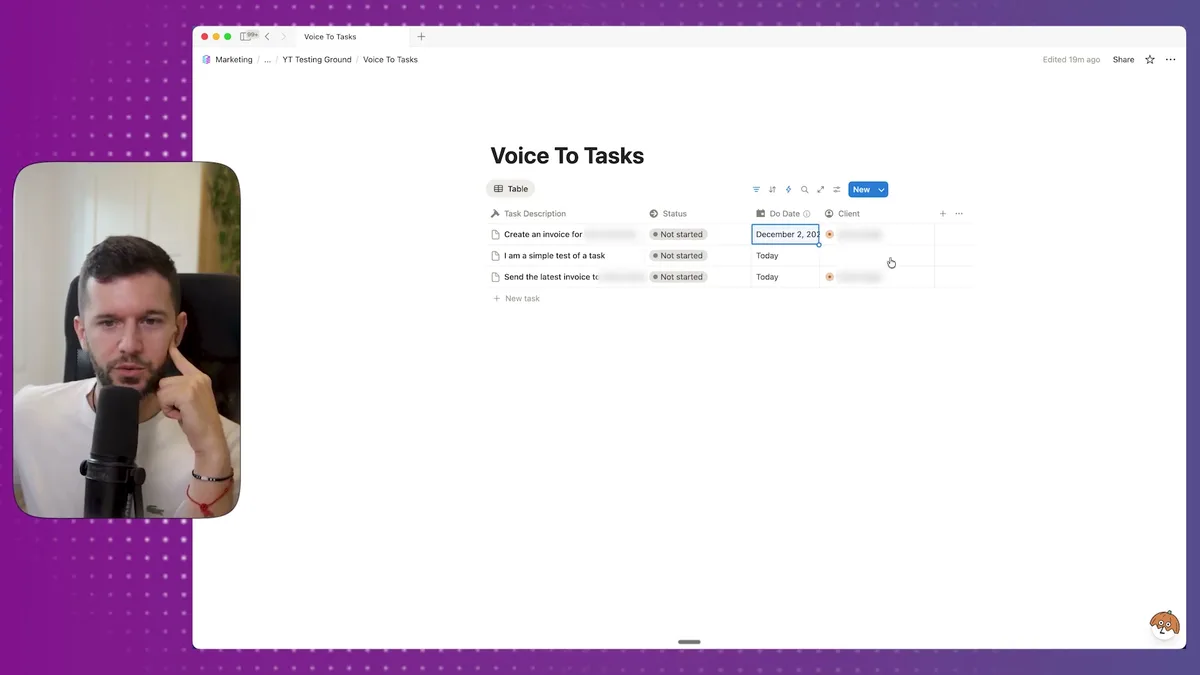
The task appeared in my Notion database, linked to the correct client.
The whole thing took a few seconds.
For the model powering the agent, honestly you don't need anything powerful here. A mini or nano model from OpenAI works perfectly. The reasoning required is simple. No point spending more than you need to.
Three Other Ways to Use This Same System
This same structure works for a lot more than tasks.
The only thing that changes between use cases is which Notion databases you point the agent at, and what instructions you give it.
Let's say you have a notes or resources database inside Notion.
You could speak a rough idea for a project, and instead of it disappearing, it lands in that database, formatted and ready to develop later.
For content creators, this is actually really powerful.
Let's say you're walking to a meeting and an idea for a YouTube video hits you. You say it into your watch. By the time you sit down, there's already a card in your content ideas database with a title and any details you mentioned.
I use something similar myself because half my content ideas come when I'm not at my desk.
A diary or reflection log is another option.
Some people maintain a journal inside Notion. If you're one of them, you could speak your thoughts at the end of the day and have them land there automatically, timestamped, no formatting required.
The way to think about it: look at every database you actually use in your Notion system.
Every one of them is a potential tool you can give this agent.
With the right description on each tool, for example "use this when the user mentions a new client lead" or "use this when the user describes a piece of content," the agent figures out which one applies on its own.
You're not building separate automations for each use case. You're building one agent with multiple tools, and letting the AI route everything correctly.
That's the part I find most useful because it means the system stays simple even as it gets more capable.
One thing worth being honest about: this setup does have a small monthly cost attached to it, mostly from Voice Notes.
If you're already paying for Make and have an OpenAI API key, the incremental cost is low. But Voice Notes is the one piece I couldn't find a free replacement for. If that's a dealbreaker, this particular stack isn't for you.
If it's not, setup time is genuinely about five minutes once you have the accounts ready.

That's the result after a single voice command. A structured task, in the right database, linked to the right client, with no manual input at all.
For something I use every day, that's worth it to me.
Ready to see where your business stands with AI and automation? Take our AI Readiness Scorecard to find out.
Frequently Asked Questions
Can I use a free alternative to Voice Notes for this automation?
Voice Notes is the main paid component at about $8-15 per month. As of testing, there is no free alternative that provides the same combination of watchOS support, automatic transcription, and webhook integration. If you only need phone-based capture (not Apple Watch), you may find alternatives, but Voice Notes remains the most seamless option for this workflow.
Why use an AI agent instead of a simple automation for creating Notion tasks from voice?
A simple linear automation cannot handle the variability in voice input. Sometimes you mention a client, sometimes you do not. Sometimes you include a due date, sometimes you leave it open. The AI agent interprets your transcript, decides which fields to fill, looks up client records, and routes everything correctly without requiring separate automations for each scenario.
Does this system work with databases other than tasks in Notion?
Yes. The same architecture applies to any Notion database. You can point the AI agent at a content ideas database, a journal database, a client leads database, or all of them simultaneously. With clear descriptions on each tool, the agent determines which database to use based on what you said.
Get more like this in your inbox
AI implementation insights for service business founders. No fluff.